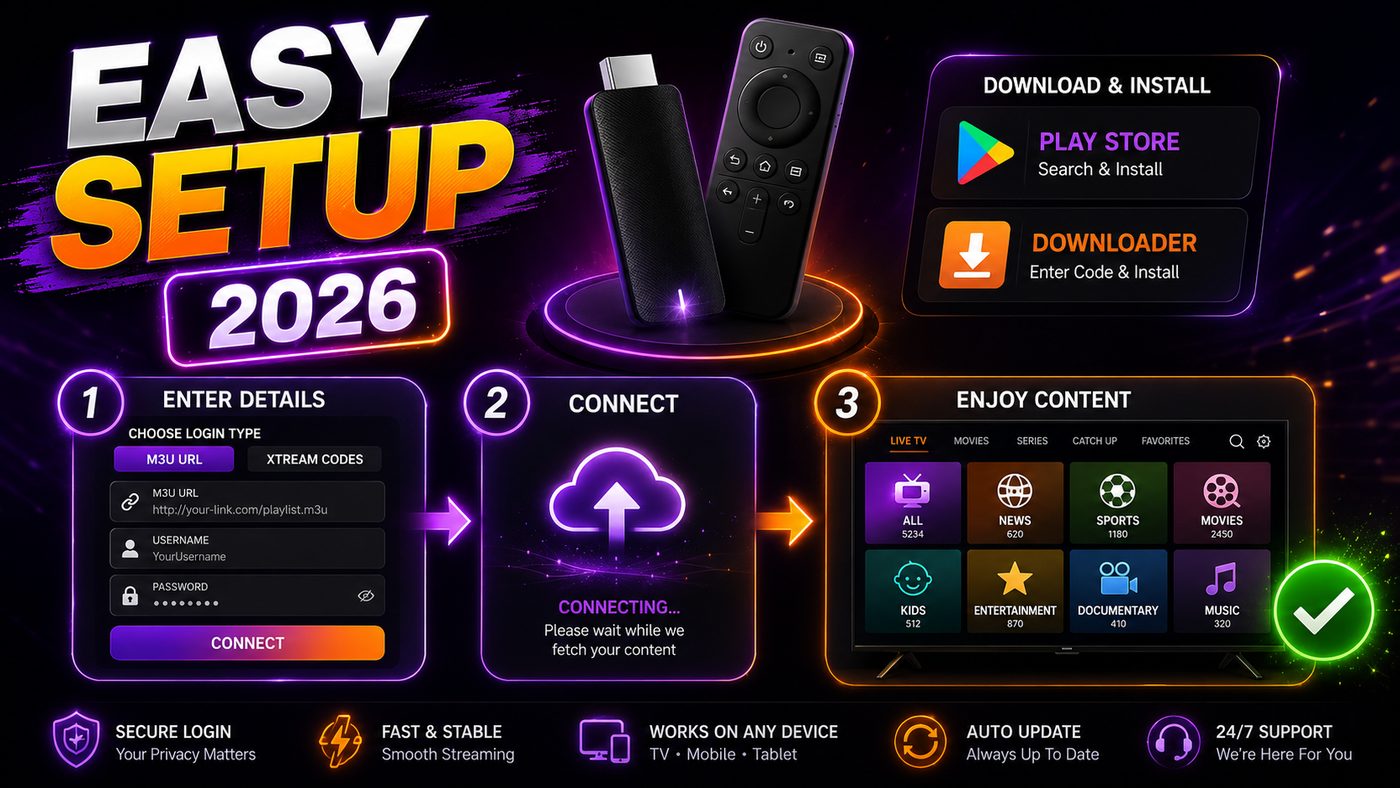
IPTV Smarters Pro is the player most people end up using on a Firestick, and the first thing everybody discovers is that it is not in the Amazon app store. That is not a fault and it is not a sign of anything sinister — Amazon simply does not carry third-party IPTV players. You install it yourself, and it takes about ten minutes.
Short answer
To install IPTV Smarters Pro on a Firestick, allow apps from unknown sources in Developer Options, install the free Downloader app from the Amazon store, enter the official Smarters download link in Downloader, install the APK, then open it and log in with the Xtream Codes details from your provider. Ten minutes end to end.
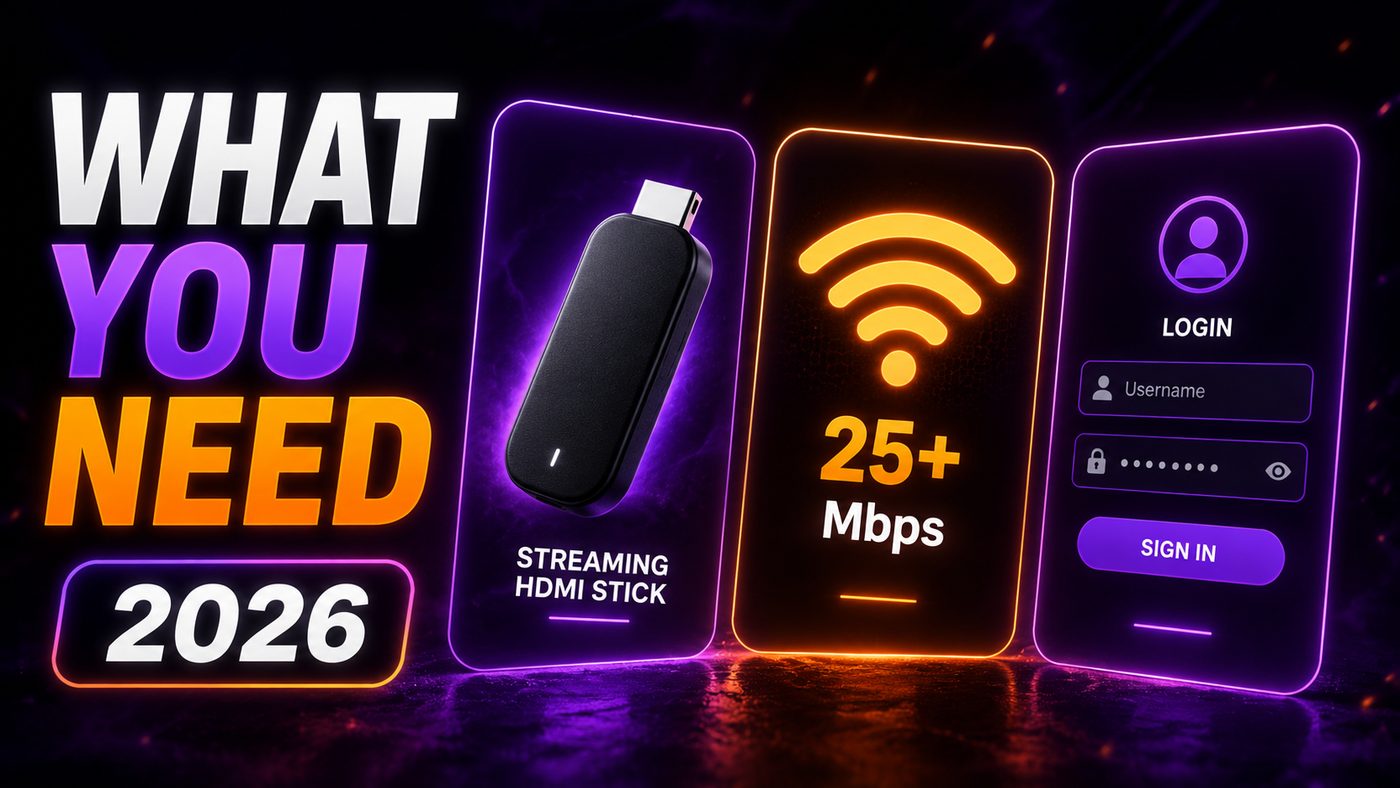
What you need before you start
Have these four things to hand and the whole process runs without a single pause.
- Your Firestick set up and on the internet, with the home screen loading normally.
- Your Amazon account password — enabling Developer Options sometimes asks for it.
- Your provider login: username, password and server URL, or an M3U link. These arrive by email when you subscribe.
- At least 500 MB of free storage. Fire devices fill up quietly and a failed install is often nothing more than a full disk.
One thing worth knowing before you begin: what you are about to do is called sideloading, and it is a normal, supported part of Fire OS. Amazon builds the setting into the operating system. You are not jailbreaking anything, and nothing about your device is modified beyond installing an app.
Step 1 — Allow apps from unknown sources
The Firestick blocks installs from outside the Amazon store until you tell it otherwise. Turning that off is three menus deep and takes thirty seconds.
- From the Fire TV home screen, open Settings — the gear icon along the top row.
- Choose My Fire TV, then Developer Options.
- Turn on Apps from Unknown Sources and accept the warning.
- If you cannot see Developer Options, go to Settings, My Fire TV, About, then press the select button on your device name seven times. The menu appears.
That seven-press trick catches people out constantly. Newer Fire OS builds hide Developer Options entirely until it is unlocked, and the menu gives no hint that it exists. If yours is missing, it is hidden rather than absent.
On some recent builds you will not find a single global switch at all. Instead the permission is granted per app, and it is Downloader itself that has to be allowed — the toggle then appears as Install unknown apps with a list of apps beneath it. Same result, one extra tap.
Step 2 — Install Downloader
Downloader is a free, legitimate app published in the Amazon store, and it exists for exactly this purpose: fetching a file from a web address and installing it.
- Go to the search icon on the Fire TV home screen — the magnifying glass on the far left.
- Type Downloader and select it from the results. It has an orange icon.
- Choose Get or Download, wait for it to install, then open it.
- Accept the storage permission it asks for on first launch. It cannot save the file without it.
While you are here, it is worth using the voice remote rather than typing on the on-screen keyboard. Holding the microphone button and saying the word takes two seconds and avoids a lot of directional-pad tapping.
Step 3 — Download the APK
In Downloader, open the Home tab, select the URL field, and type the official download address your provider gave you for the Smarters APK.
Two rules here, and they matter more than anything else in this guide. Only ever use a link from the official Smarters site or directly from your provider. APKs from random file-sharing sites and forum posts are frequently repackaged with adware or worse, and there is no way to tell by looking. And type the address exactly, including any capital letters — Downloader is unforgiving about typos, and a mistyped address usually returns a page of nonsense rather than a clean error.
Press Go. The file is between 20 and 40 MB and downloads in well under a minute on any normal connection. When it finishes, Fire OS shows an install screen listing the permissions the app wants.
Choose Install, wait for it to complete, then choose Open. Once it is running, go back to Downloader and delete the APK file when it offers — it has done its job and it is taking up space you will want later.
If a download link did not come from your provider or the official site, do not install it. There is no way to tell a clean APK from a modified one by looking at it.
Step 4 — Log in
Smarters opens on a choice of login methods, and picking the right one saves a lot of confusion.
| Login type | What you enter | Use it when |
|---|---|---|
| Xtream Codes API | Username, password, server URL | Almost always — it gives you a guide and catch-up |
| M3U playlist URL | One long web address | Your provider only supplied a link |
| Load your playlist file | A file already on the device | Rare, and awkward on a Firestick |
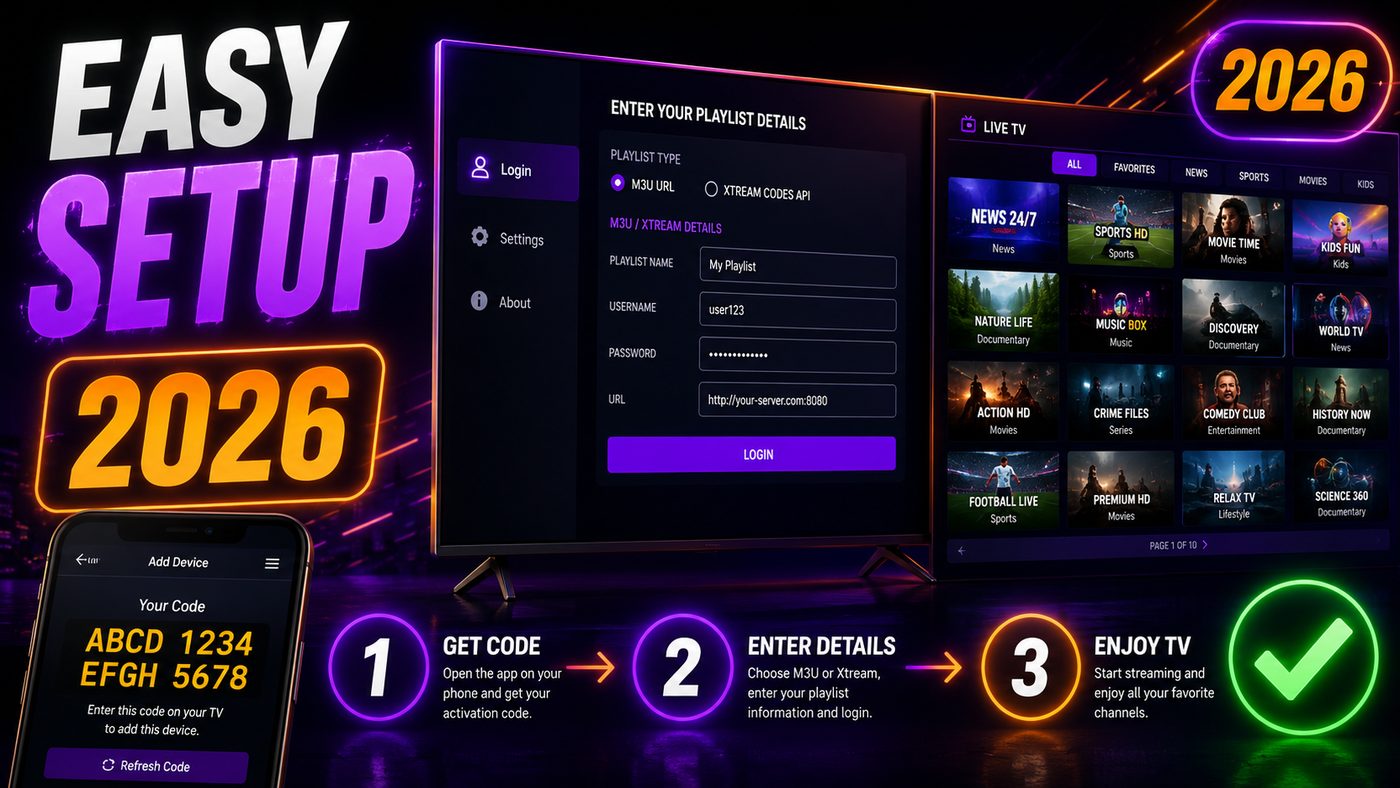
Choose Login with Xtream Codes API whenever your provider gives you a username and password. It carries the programme guide, catch-up and series information that a plain M3U link does not, and it survives server changes without you having to re-enter anything.
Type the details exactly as they appear in your email. The two mistakes that account for nearly every failed login are a trailing space picked up when copying, and the server URL entered without its port number. If your provider gave you an address ending in a colon and four digits, those digits are part of the address.
Give it a name you will recognise — your provider name is ideal — then select Add User. The channel list downloads over the next thirty seconds to two minutes depending on its size, and then you are watching.
Step 5 — The settings worth changing straight away
Five minutes here saves months of small irritations. All of these live in the Settings section of Smarters itself, not in Fire OS.
- Default player. If playback stutters or a channel shows a black screen with sound, switch the player engine. Hardware decoding is faster; software decoding is more compatible with awkward streams.
- Auto-start on boot. Handy if this is the only thing the device is used for. Irritating if it is not.
- EPG refresh. Set it to update daily. The guide is a separate download from your channels, and it goes stale on its own schedule.
- Subtitles. Turn them on globally rather than per channel, otherwise you are setting them again every time you switch.
- Hide the categories you never watch. A list of forty groups is unusable with a directional pad; a list of six is pleasant.
Also set your time zone correctly in Fire OS itself, under Settings, Preferences. Smarters reads the device clock for the programme guide, and a device left on a default time zone shows every programme at the wrong hour while looking otherwise perfect.
If something goes wrong
Four failures cover almost everything people run into, and each has a specific cause rather than a general one.
The app will not install
Either unknown sources is still switched off, or the device is out of storage. Check free space under Settings, My Fire TV, About, Storage. Below about 500 MB, installs start failing without a clear message. Uninstall two apps you never open and try again.
The login is rejected
Retype the details by hand rather than pasting, and check the server URL includes its port. If everything is definitely correct and it still fails, the subscription may be locked to a device or an address — that is a message to your provider rather than something you can fix on the Firestick.
Channels load but stutter
That is a network or hardware limit, not an install problem. Switch the player engine first, then drop the stream quality. A base-model stick decoding a high-bitrate 4K feed is at the edge of what it can do, and the picture will tell you so.
The guide is empty
Force an EPG refresh in Smarters settings and wait a full five minutes — the guide is a large file and it is downloaded and parsed separately from the video. If it is still empty after that, check the device clock and time zone before blaming anything else.
Common mistakes
- Downloading the APK from a forum link or a file-sharing site instead of the official source.
- Missing the port number on the end of the server URL, then assuming the subscription is dead.
- Copying credentials with a trailing space, which reads as a wrong password every time.
- Leaving the Fire OS time zone on its default, so every programme in the guide is hours out.
- Ignoring storage until installs start failing silently.
- Turning on auto-start on a device the whole household uses for everything else.
Is IPTV Smarters Pro safe to install?
The app itself is a video player. It holds no content, it hosts nothing, and it does nothing on its own until you give it a subscription to point at — in that sense it is no different from VLC. The safety question is entirely about two things: where you downloaded the file and whose service you are logging into.
A copy from the official site or straight from your provider is the same app millions of people run. A copy from a random mirror may be anything at all, because an APK can be repackaged with additional code and still install and run exactly as expected. The file size and the icon tell you nothing.
The second half of that question — whether the service you are subscribing to is above board — is the bigger one, and it is covered properly in is IPTV legal. The short version is that the player is never the issue; the provider is.
Firestick or something else?
A Firestick is the cheapest sensible way to run IPTV and it is what most people already own. It is not the best. If you are buying specifically for this, three things are worth knowing.
The base model has limited memory and no ethernet port, which makes it the device most likely to stutter on a busy evening. The 4K Max is meaningfully faster and supports Wi-Fi 6. And any Fire device can be wired with a cheap ethernet adapter, which removes the single most common cause of buffering in one move.
If you already own a mid-range Android TV box, use that instead — they generally decode better and give you more player choice. Our setup guides cover the alternatives device by device.
Frequently asked questions
Why is IPTV Smarters Pro not in the Amazon app store?
Amazon does not carry third-party IPTV players in its store, so the app is distributed as an APK instead. Installing it through Downloader is a normal, supported Fire OS process — Amazon builds the unknown-sources setting into the system for exactly this.
Is it safe to install IPTV Smarters Pro on a Firestick?
The app is a video player and is safe when downloaded from the official site or directly from your provider. APKs from forums and file-sharing mirrors can be repackaged with additional code, and you cannot tell by looking, so the source is what matters.
Do I need a VPN to use IPTV Smarters on a Firestick?
Not for the app to work. A VPN always costs some speed and adds latency, which makes buffering more likely, so if you use one, choose a server close to you. Whether you want one at all depends on your provider and your own reasons.
Why does my login fail when the details are correct?
Nearly always a trailing space copied with the password, or a server URL entered without its port number. Retype both by hand. If it still fails, the subscription may be locked to another device or IP address, which only your provider can reset.
How do I update IPTV Smarters Pro later?
The same way you installed it — reopen Downloader and fetch the current APK from the official link, then install over the top. Your login and settings are kept. There is no automatic update because the app did not come from the store.
Can I use the same subscription on my phone as well?
Usually yes, up to the connection limit on your plan. The mobile version of Smarters takes exactly the same Xtream Codes details. Exceeding the limit produces logouts or stream errors rather than a clear message, so check what your plan allows.
The short version
Enable unknown sources, install Downloader, fetch the APK from the official link, install it, log in with Xtream Codes, then spend five minutes on the player engine, the EPG refresh and the time zone. That is the whole job, and everything that goes wrong afterwards is nearly always one of those five minutes skipped.
If your channel list is slow to load or stutters no matter which settings you change, the device is rarely the whole story — server provisioning is the other half. See what a properly provisioned service costs, or work through our device setup guides for the rest of the hardware.