Kodi is one of the most popular ways to watch IPTV because it's free, open-source, runs on nearly everything — Firestick, Android boxes, Windows, Mac, Linux, Raspberry Pi — and its PVR system was purpose-built for live TV. The catch is that Kodi does nothing out of the box: it's a shell you configure. That's exactly what trips people up, and exactly what this guide solves. Follow it in order and you'll have a working channel grid in about ten minutes.
Short answer
To set up IPTV on Kodi in 2026 you install the built-in PVR IPTV Simple Client add-on, feed it your provider's M3U playlist URL (or Xtream Codes login), point it at your EPG guide URL, enable the add-on, and restart Kodi. Within a couple of minutes your channels appear under the "TV" menu with a full program guide — turning Kodi into a complete live-TV player on almost any device. This guide walks through every step with the exact menu paths, covers both the M3U and Xtream Codes methods, shows how to load the EPG for a proper channel guide, and fixes the most common Kodi IPTV problems (buffering, "no PVR clients enabled," missing logos).
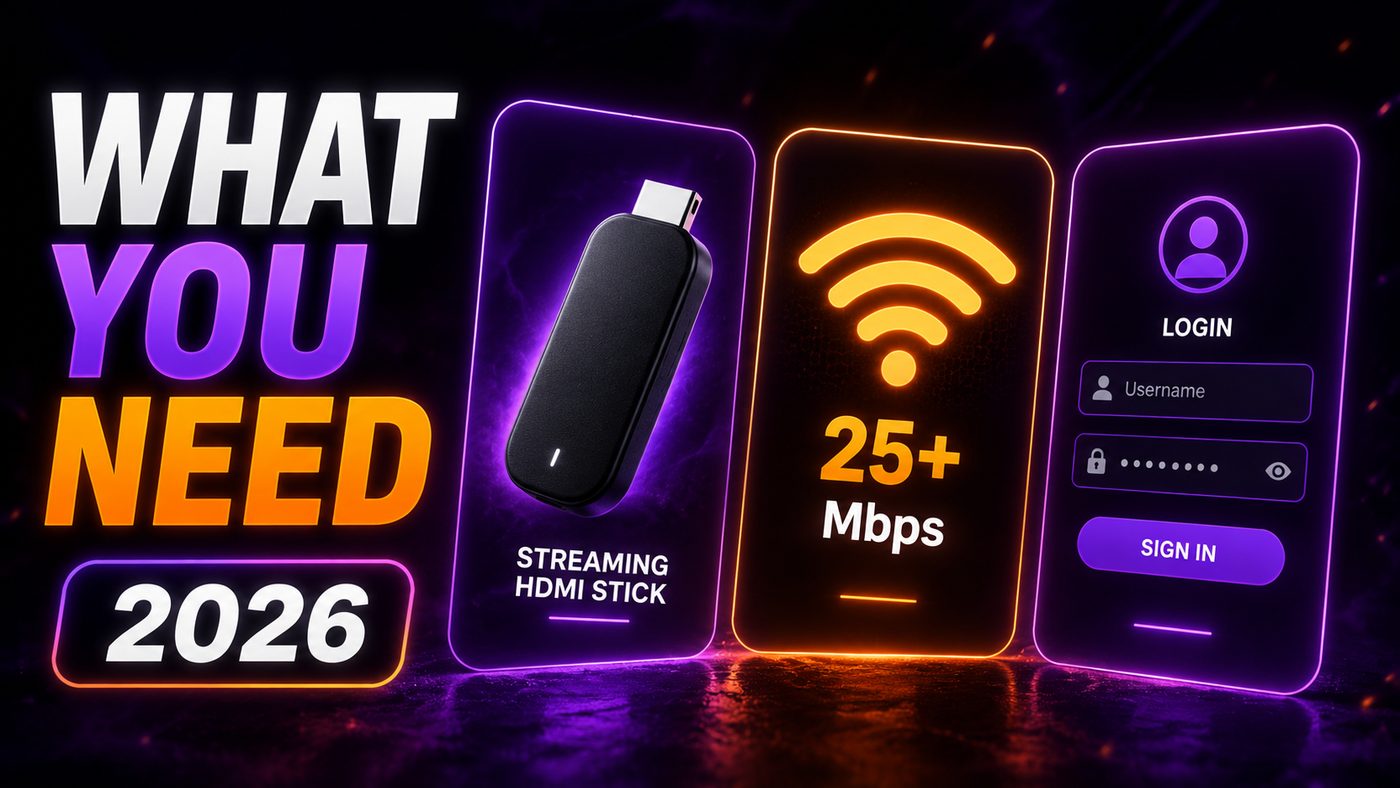
What You Need Before You Start
Three things, and only three:
- Kodi installed on your device (version 19 "Matrix," 20 "Nexus," or 21 "Omega" — the steps are nearly identical). Get it from the official kodi.tv site, never a random "pre-loaded" build.
- An IPTV subscription that gives you either an M3U playlist URL or Xtream Codes login (a username, password, and server URL). With NIXATV, both are issued the moment you subscribe — pick a NIXATV plan to get your details.
- Your EPG URL (the electronic program guide feed) if you want the guide grid filled in — your provider supplies this too. Our EPG explained guide covers what it is.
That's the whole shopping list. Kodi itself is free; the only thing you pay for is the IPTV subscription that supplies the channels.
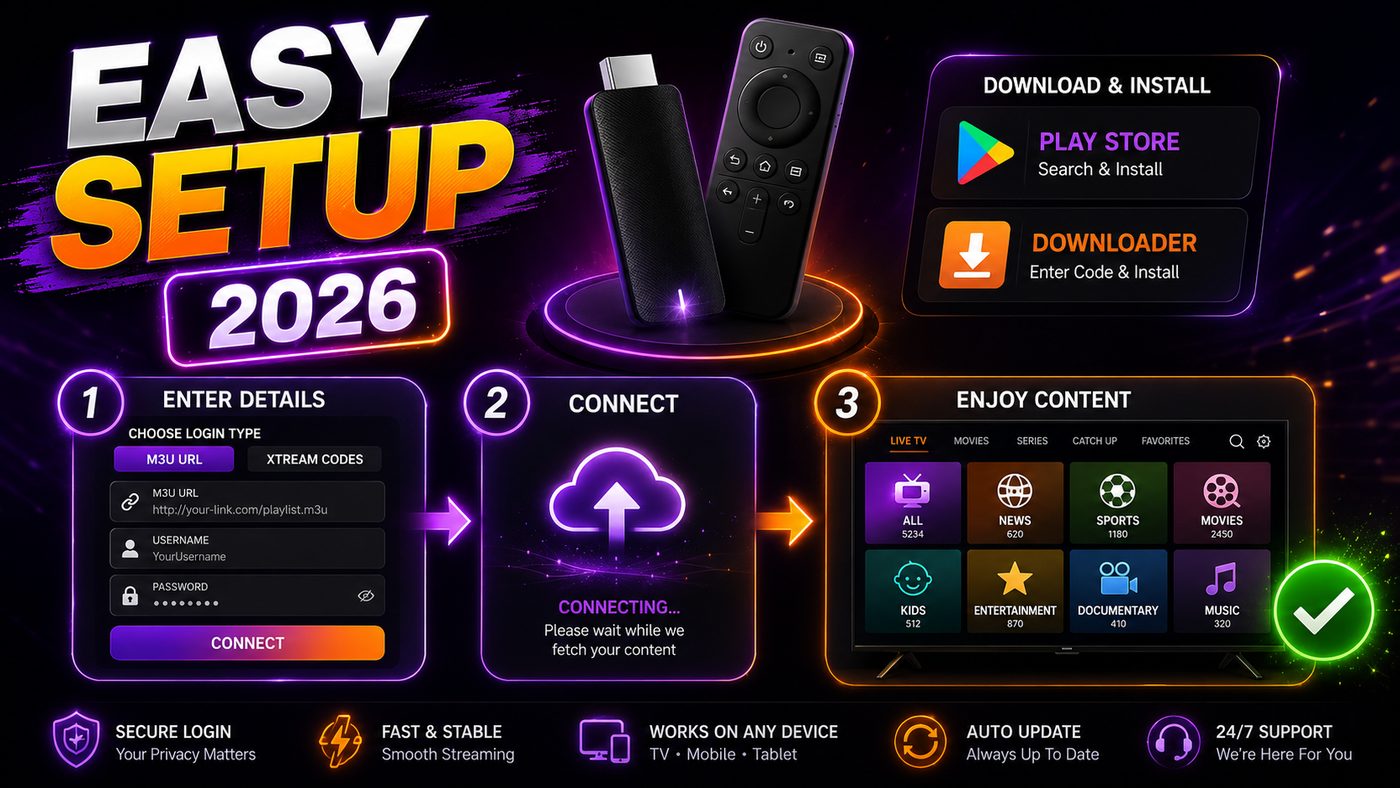
Method 1: Set Up IPTV on Kodi With an M3U URL
This is the most common method. Have your M3U playlist URL ready (it looks like a long web address ending in .m3u or get.php?...&type=m3u_plus).
- Open Kodi settings. From the home screen, click the gear icon at the top left.
- Go to Add-ons. Select Add-ons → My add-ons → PVR clients.
- Find PVR IPTV Simple Client. It's in the list by default. Click it, then click Configure. (If you see Enable first, that's fine — configure it before or after enabling.)
- Choose the M3U location. Under the General tab, set Location to Remote Path (Internet address).
- Paste your M3U URL. In the M3U Play List URL field, enter your provider's playlist address exactly, then click OK.
- Add the EPG. Switch to the EPG Settings tab, set Location to Remote Path, and paste your XMLTV URL (the EPG feed) so the guide fills in.
- Enable and restart. Click OK, choose Enable if you haven't, then fully close and reopen Kodi. On restart Kodi loads the playlist — a "channels loaded" notification appears.
Head back to the Kodi home screen and you'll now see a TV menu. Open it, and your live channels are there with the program guide. That's it — you're watching IPTV on Kodi.
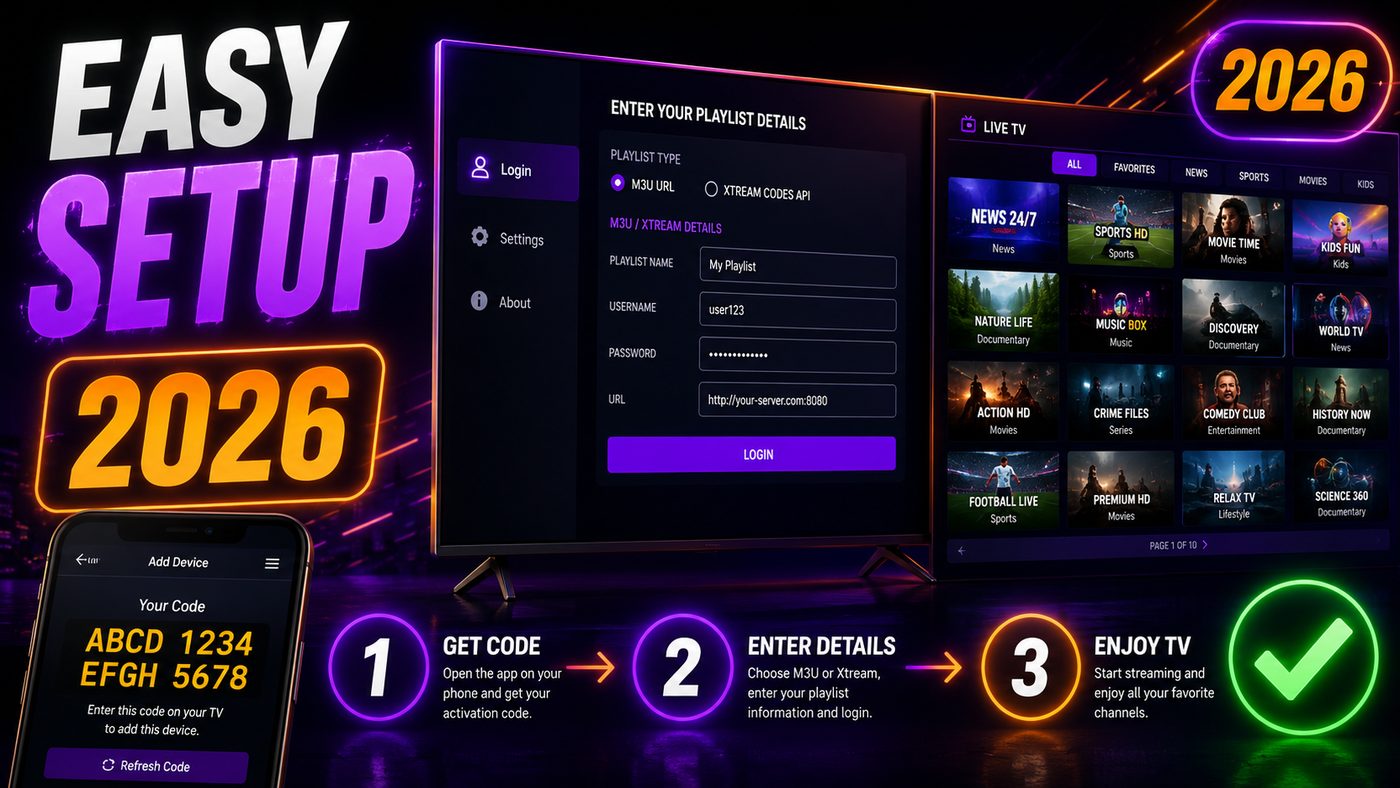
Method 2: Set Up IPTV on Kodi With Xtream Codes
If your provider gives you an Xtream Codes login (server URL + username + password), newer versions of PVR IPTV Simple Client support it directly, which auto-loads channels and the EPG together:
- Open PVR IPTV Simple Client → Configure (same path as above).
- Go to the General tab and set the Location/mode to Xtream Codes (labelled "Xtream Codes" or "M3U from Xtream Codes" depending on version).
- Enter your server URL (e.g.
http://yourserver:port), username, and password in the provided fields. - Click OK, Enable, and restart Kodi.
The advantage of Xtream Codes is that channels, categories, logos, and the EPG usually load together in one step — no separate M3U and XMLTV URLs to juggle. Our Xtream Codes guide explains the format in detail. Both methods end at the same place: a working TV guide inside Kodi.
Loading Your EPG (Program Guide) Correctly
A blank guide is the most common "half-working" complaint, so it's worth getting right. The EPG (electronic program guide) is a separate data feed from the channels themselves — the channel list tells Kodi what to play, the EPG tells it what's on and when.
- If you used the M3U method, you must paste the XMLTV/EPG URL under the EPG Settings tab yourself — channels can work while the guide stays empty until you do.
- If you used Xtream Codes, the EPG usually comes automatically.
- After adding the EPG, give Kodi a few minutes on first load to download and parse the guide data — a large guide can take a moment to populate.
- You can adjust how many days of guide data Kodi keeps under the EPG settings; more days uses a little more memory.
For the full picture of how guide data works across any app — not just Kodi — see our what is EPG on IPTV explainer.
Kodi vs a Dedicated IPTV App: An Honest Comparison
Kodi is powerful, but it isn't the only way — and for some users a purpose-built player is simpler. Here's the honest trade-off:
| Kodi (+ PVR Simple Client) | Dedicated IPTV app | |
|---|---|---|
| Cost | Free, open-source | Free or low-cost |
| Setup difficulty | Moderate — manual config | Easy — paste login, done |
| Customization | Extensive (skins, add-ons) | Focused on live TV/VOD |
| VOD / movies | Limited via PVR client | Built-in movie & series library |
| Devices | Nearly everything | Most streaming devices |
| Best for | Tinkerers, media-center fans | Plug-and-play simplicity |
The rule of thumb: if you already use Kodi as your media center and want live TV inside it, PVR IPTV Simple Client is perfect. If you just want channels and a movie library with minimal fuss, a dedicated player like IPTV Smarters Pro or TiviMate is faster to set up and includes on-demand content Kodi handles less gracefully. Many users run both. Our player comparison and Smarters Lite guide help you choose.
Setting Up Kodi IPTV on Firestick & Android Boxes
Kodi is hugely popular on Amazon Fire TV Stick and Android TV boxes, and the IPTV setup steps above are identical on those devices — Kodi's interface is the same everywhere. The only extra step is installing Kodi itself on a Firestick, which requires enabling app installs from unknown sources and sideloading the official APK. Once Kodi is on the device, the PVR IPTV Simple Client configuration is exactly as described above.
A hardware note: Kodi with live IPTV is more demanding than a lightweight dedicated app, so on an older or entry-level Firestick you may notice slower menus. A Fire TV Stick 4K or a decent Android box handles it comfortably. If you specifically want the Firestick route, our Firestick IPTV guide and best IPTV for Firestick article cover device choice and the simpler app-based alternatives.
Which Kodi Version Should You Use in 2026?
Kodi releases carry code-names, and the IPTV setup is nearly identical across the recent ones — but a few differences are worth knowing before you install:
- Kodi 21 "Omega" is the current generation in 2026 and the one to install on a fresh device. It has the most refined PVR handling and the best hardware support.
- Kodi 20 "Nexus" and 19 "Matrix" both work fine for IPTV with PVR IPTV Simple Client; the menu paths in this guide apply to all three.
- Avoid ancient builds (18 and older). Old versions have outdated PVR add-ons and security issues, and many providers' playlists rely on newer streaming protocols those versions handle poorly.
- Never install "modified" or "pre-loaded" Kodi. Bundles advertised as coming with everything set up are a security and stability risk, and they frequently break on official updates. Install clean Kodi from kodi.tv and configure it yourself using this guide — it takes ten minutes and you'll actually understand your setup.
One practical upgrade note: if you move from an older Kodi to a newer one, your PVR IPTV Simple Client settings don't always carry over cleanly. It's usually faster to simply re-enter your M3U or Xtream Codes details in the fresh install than to migrate an old configuration.
Kodi on Low-Power Devices: Managing Performance
Because Kodi is a full media center rather than a lightweight streaming app, it asks more of your hardware than a dedicated IPTV player does. On a capable device — a Fire TV Stick 4K, a mid-range Android box, a Windows PC, or a Raspberry Pi 4/5 — live IPTV runs smoothly. On older or entry-level hardware, you may notice sluggish menus or slower channel switching. A few adjustments help a lot:
- Use a lightweight skin. The default Estuary skin is efficient; heavy third-party skins with lots of widgets tax weak devices and slow down live-TV navigation.
- Limit EPG days. Loading two weeks of guide data uses more memory than a few days. On a low-RAM device, keep the EPG window modest.
- Wire it up. Ethernet beats Wi-Fi every time for stable IPTV, and it takes load off a weak wireless chip.
- Tune the cache. Kodi's video cache can be adjusted so live streams buffer ahead more smoothly on slower connections — a common fix for occasional stutter.
If, after tuning, Kodi still feels heavy on your device, that's a legitimate reason to consider a dedicated app instead — they're built specifically for lean live-TV playback. Our best IPTV box guide covers hardware that handles Kodi comfortably.
Fixing the Most Common Kodi IPTV Problems
Kodi's flexibility is also where problems creep in. Here are the issues readers hit most and how to fix each:
"No PVR clients enabled" or no TV menu appears
The add-on isn't enabled. Go back to Add-ons → My add-ons → PVR clients → PVR IPTV Simple Client and make sure it says Enabled. Then restart Kodi fully. The TV menu only appears once an active PVR client exists.
Channels won't load / empty channel list
Almost always a bad M3U URL. Re-check that you pasted the complete playlist address with no missing characters, and that your subscription is active. Test the same M3U URL in another player to confirm it's the link, not Kodi. If it works elsewhere, delete and re-enter it in Kodi.
Guide (EPG) is blank
You either didn't add the XMLTV/EPG URL (M3U method) or Kodi is still downloading it. Add the EPG URL under EPG Settings and wait a few minutes on restart. Confirm the EPG URL is correct and active.
Buffering or stuttering
This is a network or cache issue, not a Kodi bug. Check your speed with a Speedtest (25 Mbps+ for HD, 50 Mbps+ for 4K), use Ethernet over Wi-Fi where possible, and adjust Kodi's cache settings if needed. Our full fix IPTV buffering guide and speed requirements guide walk through every cause. If only some channels buffer, it's usually the source, not your setup — see IPTV not working fixes.
Missing channel logos
Logos come from the M3U or a logo path. With Xtream Codes they usually load automatically; with a plain M3U they depend on the playlist including logo URLs. This is cosmetic and doesn't affect playback.
Kodi IPTV Tips Most Guides Skip
A few habits that make Kodi genuinely pleasant to live with:
- Set up channel groups. If your provider's playlist includes categories, Kodi respects them — jump straight to "Sports" or "News" instead of scrolling thousands of channels.
- Use a good skin sparingly. Kodi skins are fun, but heavy ones slow down low-power devices. On a Firestick, stick close to a lightweight skin for smooth live TV.
- Keep Kodi official and updated. Download only from kodi.tv. "Pre-built" Kodi bundles from unknown sources are a security risk and often break on updates.
- Note the VOD limitation. PVR IPTV Simple Client is a live TV tool. If a big on-demand movie library matters to you, a dedicated app with a built-in VOD section is the better home for that — see our best IPTV for movies guide.
- Back up your configuration. Once Kodi is set up the way you like it, Kodi's backup add-ons let you export your settings. If you ever reinstall or move to a new device, you restore in seconds instead of rebuilding from scratch.
- Refresh the guide if it drifts. If the EPG ever looks out of date, you can force Kodi to clear and re-download the guide data from the PVR settings — quicker than reconfiguring the whole add-on.
None of these are essential to get watching, but together they turn a working setup into one you never have to think about again — which is exactly the point of choosing Kodi as a long-term media center rather than a throwaway app.
Frequently Asked Questions
How do I set up IPTV on Kodi?
Install the built-in PVR IPTV Simple Client add-on (Settings → Add-ons → My add-ons → PVR clients), configure it with your provider's M3U playlist URL or Xtream Codes login, add your EPG URL for the program guide, enable the add-on, and restart Kodi. Your channels then appear under the TV menu with a full guide. The whole process takes about ten minutes.
Is Kodi free to use for IPTV?
Yes — Kodi is free, open-source software, and the PVR IPTV Simple Client add-on is built in at no cost. The only thing you pay for is the IPTV subscription that supplies the channels. Download Kodi only from the official kodi.tv website.
What's the difference between the M3U and Xtream Codes methods?
The M3U method uses a playlist URL and a separate EPG URL you paste in manually. The Xtream Codes method uses a server URL, username, and password, and typically loads channels, categories, logos, and the EPG together automatically. Both end with a working channel guide in Kodi; Xtream Codes is slightly less manual. See our Xtream Codes guide.
Why is my Kodi IPTV guide (EPG) blank?
Usually because the EPG/XMLTV URL wasn't added (with the M3U method you must paste it under EPG Settings yourself) or because Kodi is still downloading the guide data. Add the correct EPG URL, restart Kodi, and give it a few minutes to populate. See our EPG guide.
Can I use Kodi for IPTV on a Firestick?
Yes. Install Kodi on the Firestick (via the official APK), then follow the same PVR IPTV Simple Client steps. The setup is identical to any other device. Note that Kodi is heavier than a dedicated app, so a Fire TV Stick 4K performs better than an older stick — our Firestick guide covers the alternatives too.
Why does Kodi IPTV keep buffering?
Buffering is almost always a network issue rather than a Kodi fault — check that you have 25 Mbps+ (50 Mbps+ for 4K), prefer a wired Ethernet connection, and adjust Kodi's cache if needed. If only certain channels buffer, the source stream is the likely cause. Our fix IPTV buffering guide details every fix.
Does Kodi IPTV include movies and series on demand?
The PVR IPTV Simple Client is designed for live TV, and its on-demand support is limited. If a large movie and series library matters to you, a dedicated IPTV app with a built-in VOD section handles that far better than Kodi — see our best IPTV for movies and VOD explained guides.
The Bottom Line
Kodi turns almost any device into a capable live-TV player, and the built-in PVR IPTV Simple Client makes IPTV setup a ten-minute job once you know the menu path: enable the add-on, paste your M3U URL or Xtream Codes login, add the EPG, restart. From there you get a full channel grid with a program guide, on Firestick, Android, Windows, Mac, or Raspberry Pi alike.
The one honest caveat is that Kodi is a media center first and a live-TV tool second — it's brilliant for tinkerers, while users who just want channels plus a big movie library often prefer a dedicated app. Either way, the setup starts with a reliable subscription and valid M3U or Xtream login. Pick a NIXATV plan, grab your playlist details, and you'll be watching in Kodi within minutes.