If you've ever opened your IPTV app and seen "No Information" or "No EPG" next to every channel, you've run into one of the most common — and most fixable — IPTV annoyances. Understanding what the EPG is and where it comes from makes these issues simple to solve. Let's break it all down in plain English.
Short answer
EPG stands for Electronic Program Guide — the on-screen TV guide in your IPTV player that shows what's playing now and next on every channel, with titles, times, and descriptions. It's the same kind of grid you remember from cable, except it's delivered over the internet and powered by a data file (usually XMLTV format) that your provider supplies alongside your channels. A working EPG turns a plain list of channels into a proper TV experience: you can see schedules, plan your viewing, and on many setups even pause, rewind, or record. This guide explains exactly what EPG is, how it works, how to set it up, and how to fix the most common EPG problems.
What Does EPG Stand For?
EPG stands for Electronic Program Guide (sometimes called the Electronic Programming Guide, or simply "the guide" or "TV guide"). It's the interactive, on-screen schedule that lists what's currently airing and what's coming up across all your channels. Instead of flipping blindly through channels hoping to catch something good, the EPG lets you scroll a grid of programs organized by channel and time.
On a traditional cable or satellite box, the EPG was built in. On IPTV, the guide is delivered as data over the internet and displayed by your player app. The concept is identical; only the delivery method has changed. If you're still getting familiar with the basics of the technology, our complete guide to what IPTV is and how it works covers the foundations before we go deeper on the guide itself.
How Does the EPG Work on IPTV?
The EPG works through a small but important piece of behind-the-scenes data. Here's the chain, step by step:
- Your provider maintains a schedule file. This is usually in a format called XMLTV — a standardized file that lists every channel's programs, start and end times, titles, and descriptions.
- The file is hosted at a URL. Your provider gives you (or pre-loads) an EPG URL, often bundled automatically with your Xtream Codes login or M3U playlist.
- Your player app downloads and reads it. When you open the app, it fetches the EPG data and matches each program to the correct channel.
- The guide appears on screen. You see the familiar now/next grid, and the data refreshes periodically so it stays current.
The key takeaway: the EPG is a separate data layer from the channels themselves. Your channels can work perfectly while the EPG shows nothing — because they come from different sources. That's why "channels work but no guide" is such a common (and fixable) situation, which we'll solve below.
Why Does the EPG Matter?
A channel list without an EPG is like a library with no catalog — everything's there, but you can't easily find what you want. A good EPG transforms the experience in several ways:
- See what's on now and next. Instantly know what's airing across every channel without flipping through them one by one.
- Plan your viewing. Browse hours or days ahead to know when your game, show, or movie starts.
- Enable catch-up and recording. On many IPTV setups, a working EPG is what powers catch-up (rewatching recent programs) and the recording/timeshift features in players like TiviMate.
- Navigate faster. Jump straight to a program instead of hunting blindly.
- Get program details. Titles, descriptions, and runtimes help you decide what to watch.
In short, the EPG is what makes IPTV feel like premium TV rather than a raw stream. It's one of the clearest signs of a well-run provider — a complete, accurate guide takes ongoing effort to maintain.
What Is XMLTV? (The Engine Behind the Guide)
You'll see the term XMLTV come up constantly in EPG discussions, so it's worth understanding. XMLTV is simply the standard file format used to store TV listings data. It's an XML file containing two main things: a list of channels, and a list of programs (each tagged with a channel ID, a start time, an end time, a title, and usually a description).
Your IPTV player reads this file and matches each program's channel ID to the matching channel in your playlist. When those IDs line up correctly, the guide populates perfectly. When they don't match — a common cause of EPG problems — you get channels with no listings. Most quality providers handle all of this automatically, so you rarely need to touch an XMLTV file directly, but knowing what it is makes troubleshooting far less mysterious. For the technical background, the Wikipedia entry on XMLTV is a neutral reference.
How to Set Up the EPG on Your IPTV Player
The good news: with a quality provider, the EPG usually loads automatically when you log in. But it helps to know how it works in the most popular players in case you ever need to set it manually.
When you use Xtream Codes login
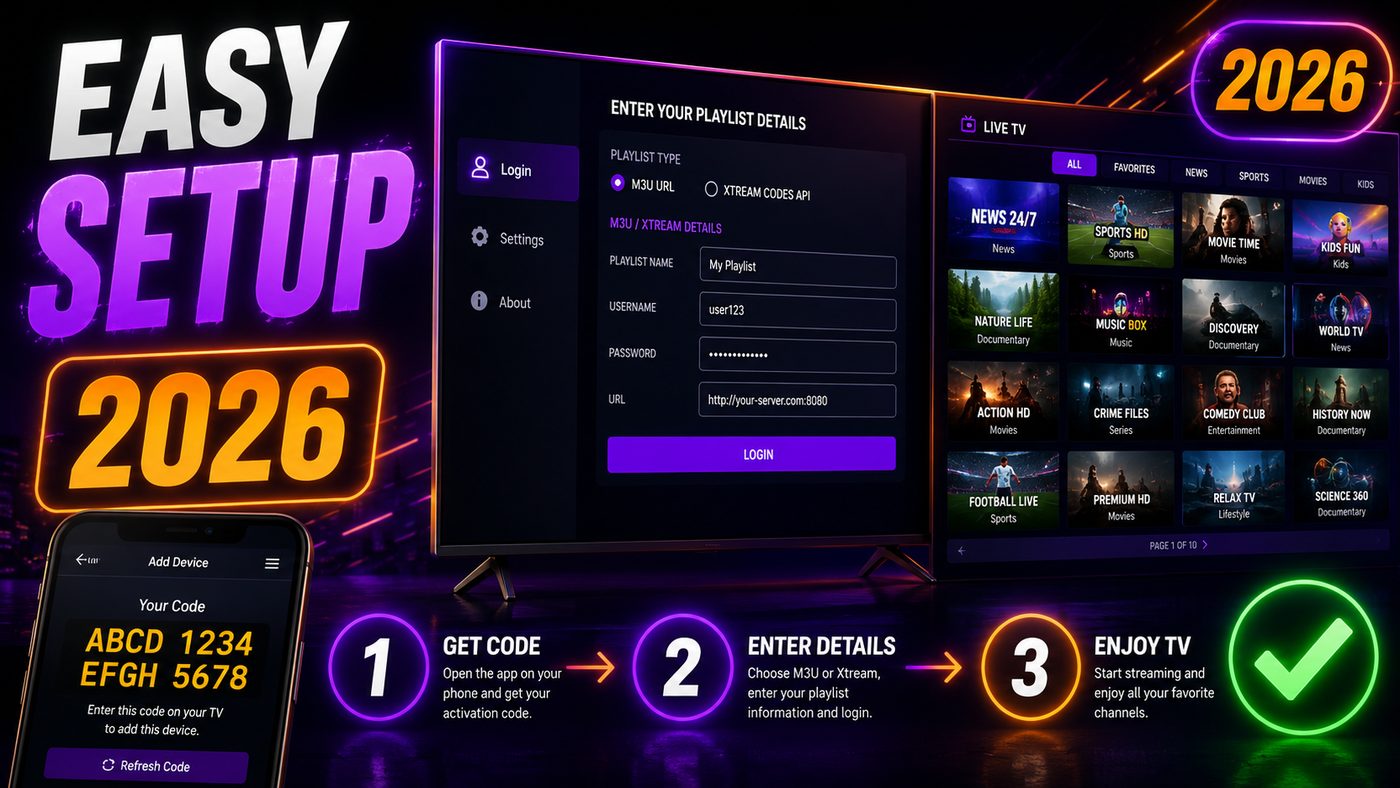
If you log in with Xtream Codes (server URL, username, password), the EPG is almost always bundled in automatically. The player pulls the channels and the matching guide data from the same source — no extra steps needed. This is the easiest setup and the reason Xtream Codes is so popular.
When you use an M3U playlist
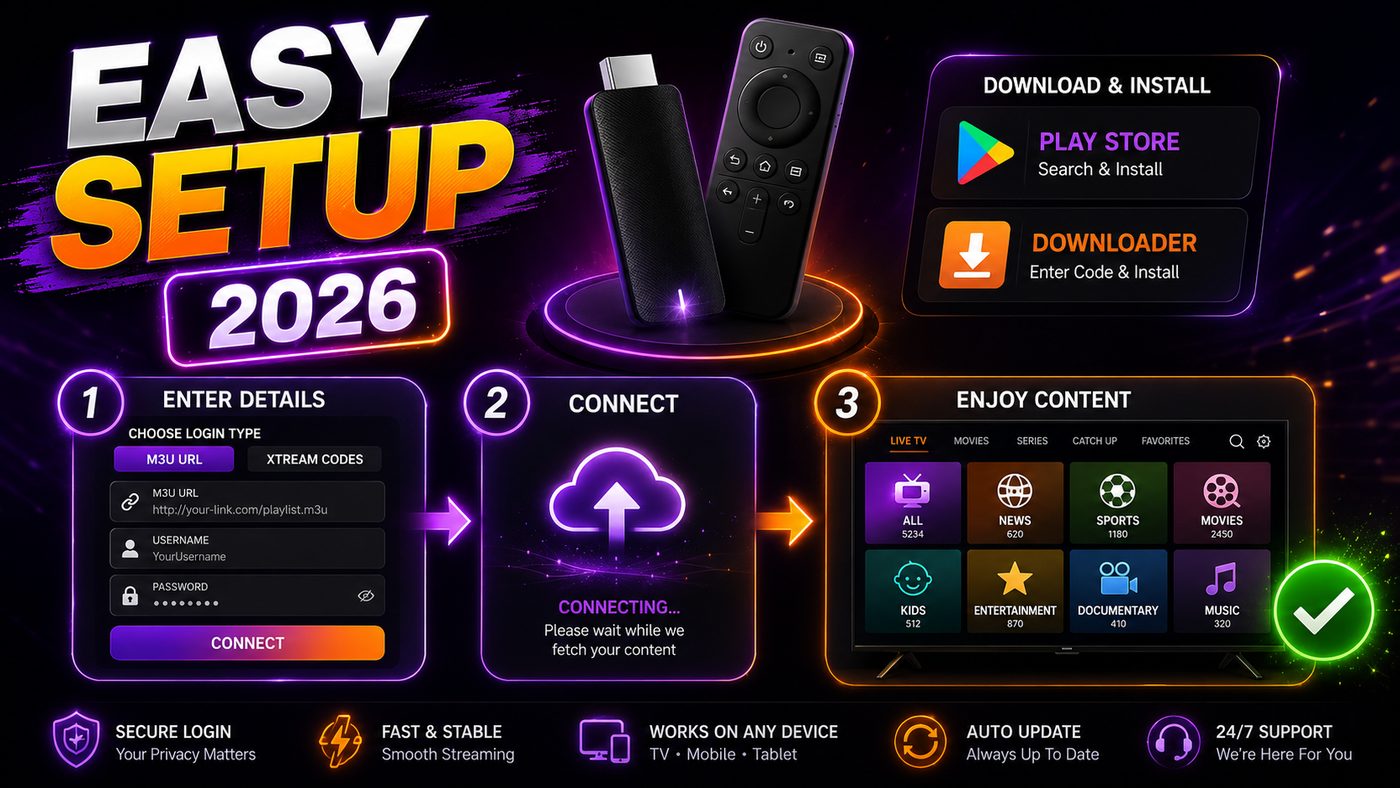
With a plain M3U playlist, you may need to add the EPG URL separately. Your provider supplies an EPG/XMLTV link; you paste it into the app's EPG settings. In IPTV Smarters Pro, this is usually automatic; in TiviMate, you can add an "EPG source" URL under playlist settings if it doesn't appear.
General steps
- Open your player's settings and find the EPG (or "TV Guide") section.
- Confirm an EPG source/URL is present (added automatically with Xtream Codes, or pasted manually for M3U).
- Trigger a manual EPG refresh/update if the option exists.
- Wait a minute for the data to download, then open the guide.
Our step-by-step installation guide walks through entering credentials on each device if you need help getting logged in first.
How to Fix a Missing or Wrong EPG
"No Information," a blank guide, or listings that don't match what's actually playing are the most common EPG complaints — and nearly all are fixable. Work through these in order:
| Problem | Likely cause | Fix |
|---|---|---|
| "No EPG" / "No Information" everywhere | EPG source missing or not loaded | Confirm an EPG URL is set; trigger a manual EPG refresh |
| EPG was there, now blank | Stale cache or failed update | Force-refresh the EPG; restart the app |
| Guide times are off by hours | Wrong time zone setting | Set the correct time zone / GMT offset in app settings |
| Some channels have EPG, others don't | Mismatched or missing channel IDs | Usually a provider-side fix; report the channels affected |
| EPG loads slowly or times out | Large EPG file or weak connection | Improve connection; allow more time on first load |
The quick universal fix
Before anything else, try this sequence — it resolves the majority of EPG issues:
- Open your player's settings and trigger a manual EPG refresh/update.
- Fully close and reopen the app (clear it from recent apps, not just minimize).
- Check your time zone setting is correct — wrong time zones make a working EPG look broken.
- Confirm your internet connection is stable; the EPG file needs to download fully.
If the guide still won't appear after this — especially if it's blank for all channels — the issue is usually on the provider's side (their EPG source is down or not linked to your account). That's when responsive support matters: a quality provider fixes it quickly. If your streams themselves are also struggling, our guide on fixing IPTV buffering covers the connection side in detail.
EPG and Catch-Up / Recording Features
One of the most underrated benefits of a solid EPG is what it unlocks beyond just showing schedules. Because the guide knows exactly when each program airs, it powers two premium features on supported players and providers:
- Catch-up (timeshift): rewatch programs that already aired — often up to several days back — by selecting a past entry in the guide. Perfect for a game or show you missed.
- Recording / scheduling: in players like TiviMate, you can highlight an upcoming program in the EPG and schedule it to record, just like an old DVR.
Both depend entirely on an accurate EPG. If the guide is missing or wrong, these features can't work — another reason a complete, well-maintained guide is a hallmark of a good service. Confirm catch-up and recording during a free trial if those features matter to you.
EPG vs Live TV vs VOD — How They Differ
New users sometimes confuse the EPG with the channels or the on-demand library. They're three distinct layers that work together, and understanding the difference clears up a lot of confusion:
| Layer | What it is | Where it comes from |
|---|---|---|
| Live TV channels | The actual live streams you watch | Your provider's servers (via M3U/Xtream) |
| EPG | The schedule/guide data about those channels | A separate XMLTV file/URL |
| VOD (Video on Demand) | Movies & series you watch any time | The provider's on-demand library |
The crucial insight is that the EPG is metadata — information about the channels — not the channels themselves. This is exactly why your live channels can play perfectly while the guide shows "No Information": the stream is coming through fine, but the separate guide data hasn't loaded. Once you see them as separate layers, troubleshooting becomes obvious: a streaming problem and an EPG problem have completely different fixes.
How Often Does the EPG Update?
The EPG isn't a one-time download — it refreshes regularly to stay accurate as schedules change. How this works in practice:
- Automatic refresh: most players re-download the EPG data periodically (commonly every several hours, or once a day) so listings stay current.
- On app open: many apps check for fresh EPG data when you launch them, which is why a quick app restart often fixes a stale guide.
- Manual refresh: every good player has a "refresh EPG" or "update EPG" option in settings for when you want to force it.
- How far ahead it shows: a quality EPG typically shows anywhere from a couple of days to a week of upcoming programs, depending on the provider's data.
If your guide ever looks out of date, a manual refresh plus an app restart almost always brings it current. Persistent staleness across all channels usually points to the provider's EPG source rather than your device.
Advanced: Using a Custom or Third-Party EPG Source
Most users never need this, but it's worth knowing for completeness. Some advanced users add a custom EPG source — a separate XMLTV URL — when their provider's guide is incomplete, or when they combine playlists from different sources. In players like TiviMate, you can add one or more EPG source URLs and the app will merge the data, matching programs to channels by their IDs.
The catch is that channel IDs must match between your playlist and the EPG source, or the listings won't line up. This is fiddly, which is why the far simpler path is to choose a provider with a complete, accurate built-in EPG in the first place — then you never have to touch a custom source. If you find yourself constantly patching a broken guide, that's a sign to switch providers rather than keep troubleshooting.
Does Every IPTV Service Have a Good EPG?
No — and this is a useful way to judge a provider's quality. Maintaining an accurate, complete EPG across thousands of channels takes constant effort, so the state of the guide tells you a lot:
- Quality providers deliver a near-complete EPG that's accurate, in the right time zone, and refreshes reliably.
- Mediocre services have patchy guides — some channels populated, many blank, listings occasionally off.
- Poor/cheap services often have little or no EPG at all, leaving you with a bare channel list.
When you're evaluating a service, check the EPG during your free trial. A clean, accurate guide is a strong sign the provider runs a tight operation. A broken or missing guide often signals corners cut elsewhere too. For our tested recommendations, see the best IPTV USA page and our guide to the best IPTV for sports, where a reliable EPG is especially important for finding live games.
EPG on Different Devices and Players
The EPG works across all the usual IPTV devices, though the look and extra features vary by player:
- IPTV Smarters Pro — clean built-in guide, EPG usually automatic with Xtream Codes; available on Firestick, Android, iOS, Smart TVs.
- TiviMate — widely considered the best guide experience, with excellent EPG layout plus recording and catch-up on supported setups (Android/Fire TV).
- Smart TV apps (Samsung/LG) — built-in guides that pull the same EPG data.
- Set-top boxes & Android boxes — full guide support, often with the most features.
Whatever device you use, the underlying EPG data is the same — it's the player that determines how nicely it's displayed and what extra features (like recording) you get. For help choosing hardware, see the best streaming devices for IPTV.
The Bottom Line: Understanding EPG on IPTV
EPG — the Electronic Program Guide — is the on-screen TV guide that turns a raw channel list into a proper viewing experience, showing what's on now and next, powering catch-up and recording, and helping you navigate thousands of channels with ease. It's delivered as a separate data file (usually XMLTV) that your player downloads, which is why channels can work while the guide doesn't — and why most "No EPG" problems are fixed with a quick refresh, a time-zone check, and a stable connection.
Above all, a complete, accurate EPG is one of the clearest markers of a quality IPTV provider. When choosing a service, test the guide during a free trial alongside the streams themselves. Want to see a clean, reliable EPG in action? Start a NIXATV plan and browse the full guide on your own device.
Frequently Asked Questions
What does EPG mean on IPTV?
EPG stands for Electronic Program Guide — the on-screen TV guide in your IPTV player that shows what's currently airing and what's coming up on each channel, with titles, times, and descriptions. It's delivered as data (usually an XMLTV file) over the internet and displayed by your player app.
Why is my IPTV EPG not showing?
The most common causes are a missing or unloaded EPG source, a stale cache, a wrong time-zone setting, or a provider-side issue. Try triggering a manual EPG refresh, fully restarting the app, confirming your time zone, and checking your connection. If the guide is blank for every channel, it's usually a provider-side fix.
How do I add an EPG to IPTV Smarters or TiviMate?
With Xtream Codes login, the EPG is usually added automatically. For an M3U playlist, paste the EPG/XMLTV URL your provider supplies into the app's EPG source settings — in TiviMate under the playlist's "EPG source," and in IPTV Smarters Pro it's typically automatic. Then trigger an EPG update.
What is XMLTV?
XMLTV is the standard file format used to store TV listings data for the EPG. It's an XML file containing a list of channels and programs, each with a channel ID, start and end times, a title, and a description. Your player matches these channel IDs to your playlist to populate the guide.
Does the EPG enable recording and catch-up?
Yes, on supported players and providers. Because the EPG knows exactly when programs air, it powers catch-up (rewatching recent shows) and scheduled recording in players like TiviMate. Both features require an accurate, working EPG, so a complete guide is essential if you want them.
Why is my IPTV EPG showing the wrong times?
Incorrect guide times are almost always a time-zone setting issue. The EPG data uses specific timestamps, and if your player's time zone or GMT offset is wrong, every listing appears shifted by a number of hours. Set the correct time zone in your app's settings and refresh the EPG, and the times will line up with what's actually airing.
Can channels work if the EPG doesn't?
Yes — this is very common. The channels and the EPG come from separate sources, so your live streams can play perfectly while the guide shows "No Information." The guide is just metadata about the channels, not the channels themselves. Refreshing the EPG, restarting the app, and checking your connection usually restores it.