This guide walks through all 10 proven fixes in order, from the 30-second tweaks to the deeper ones, so you can stop the buffering for good — whether you're on a Firestick, Smart TV, Android box, or phone.
Short answer
90% of IPTV buffering comes from just three things — a slow or unstable internet connection, weak Wi-Fi, or an overloaded streaming device. Fix those and the spinning wheel disappears. The remaining 10% is usually a clogged app cache, the wrong DNS, or a low-quality provider with overcrowded servers.
Why Does IPTV Keep Buffering?
Buffering happens when your device can't download the next few seconds of video fast enough to keep playing smoothly, so it pauses to "catch up." With IPTV, that bottleneck almost always traces back to one of four root causes:
- Internet speed or stability: your connection is too slow, or it's dropping packets intermittently.
- Wi-Fi signal: the stream reaches your router fine, but the wireless hop to your device is weak.
- Device performance: a cheap or overloaded streaming box runs out of memory mid-stream.
- Provider/server side: the IPTV service has overcrowded or under-powered servers, especially during peak hours.
The trick to fixing buffering fast is figuring out which of these is your culprit. This table helps you narrow it down:
| What you're seeing | Most likely cause | Go to fix |
|---|---|---|
| Buffers on every channel, all devices | Internet speed / provider | Fixes 1, 2, 10 |
| Buffers only on one device | That device or its Wi-Fi | Fixes 3, 4, 5 |
| Buffers only in the evening | Peak-hour congestion / provider | Fixes 2, 6, 10 |
| Only 4K channels buffer, HD is fine | Not enough bandwidth for 4K | Fixes 1, 7 |
| Buffers after weeks of working fine | App cache / device needs reboot | Fixes 4, 8 |
The 10 Proven Fixes for IPTV Buffering
Work through these in order. The early fixes are quick and solve most problems, so don't jump ahead — a two-minute speed test or cache clear often saves you from buying hardware you don't need. Try each one, then check whether the buffering is gone before moving on.
1. Test Your Internet Speed First
Before changing anything, run a speed test (Ookla's Speedtest.net is the standard) on the same device or network you stream on. Here's what you actually need:
- SD / 720p: 10 Mbps
- 1080p Full HD: 15–20 Mbps
- True 4K Ultra HD: 25 Mbps or more
- Multiple streams at once: add ~15 Mbps per extra device
If your real-world speed is below these numbers, that's your problem — either upgrade your plan or lower your stream quality (Fix 7).
2. Switch to a Wired Ethernet Connection
This is the single most effective fix. Wi-Fi is convenient but inconsistent; a wired Ethernet connection is rock-solid. For a Firestick or Android stick, a $15 Ethernet adapter plugs into the USB/power port and gives you a stable, direct line to the router. If your streaming device sits near the router, wire it — buffering often vanishes completely.
3. Improve Your Wi-Fi Signal
If wiring isn't possible, strengthen the wireless link. Move your device closer to the router, or move the router itself to a central, elevated, open spot. Use the 5GHz band instead of 2.4GHz for streaming (it's faster over short distances), and consider a mesh Wi-Fi system or a Wi-Fi extender if your TV is far from the router.
4. Clear Your IPTV App's Cache
Over time, IPTV apps build up cached data that can slow playback. Clearing it is a 20-second fix that often solves buffering on a device that "used to work fine." On Firestick: Settings → Applications → Manage Installed Applications → your IPTV app → Clear Cache. On Android: Settings → Apps → your app → Storage → Clear Cache.
5. Close Background Apps and Free Up Memory
Cheap streaming devices have limited RAM. If other apps are running in the background, your IPTV player may not have enough memory for a smooth stream. Force-close everything else before watching, and on low-end devices, avoid keeping dozens of apps installed.
6. Change Your DNS Settings
Your default ISP DNS can be slow or, in some regions, may throttle streaming. Switching to a fast public DNS often improves load times and stability. Try Google DNS (8.8.8.8 / 8.8.4.4) or Cloudflare (1.1.1.1 / 1.0.0.1) in your device's network settings. It's a free change that can make a real difference.
7. Lower the Stream Quality (When Needed)
If your internet simply can't sustain 4K, forcing it will buffer endlessly. Drop the stream from 4K to 1080p, or 1080p to 720p, in your IPTV app's playback settings. The picture is still excellent and playback becomes smooth. This is the right move on slower connections or busy networks. For more on what 4K really requires, see our 4K IPTV guide.
8. Restart Your Device and Router
The classic fix exists for a reason. Power-cycle your router (unplug for 30 seconds, plug back in) and restart your streaming device. This clears memory leaks, refreshes your network connection, and resolves a surprising number of buffering issues. Make it a weekly habit.
9. Increase the Buffer Size in Your App
Most IPTV players let you adjust the buffer in settings. A slightly larger buffer pre-loads more video, smoothing out brief network hiccups. The trade-off is a touch more delay when changing channels — a fair deal for stutter-free playback on a shaky connection.
10. Consider Whether It's Your Provider
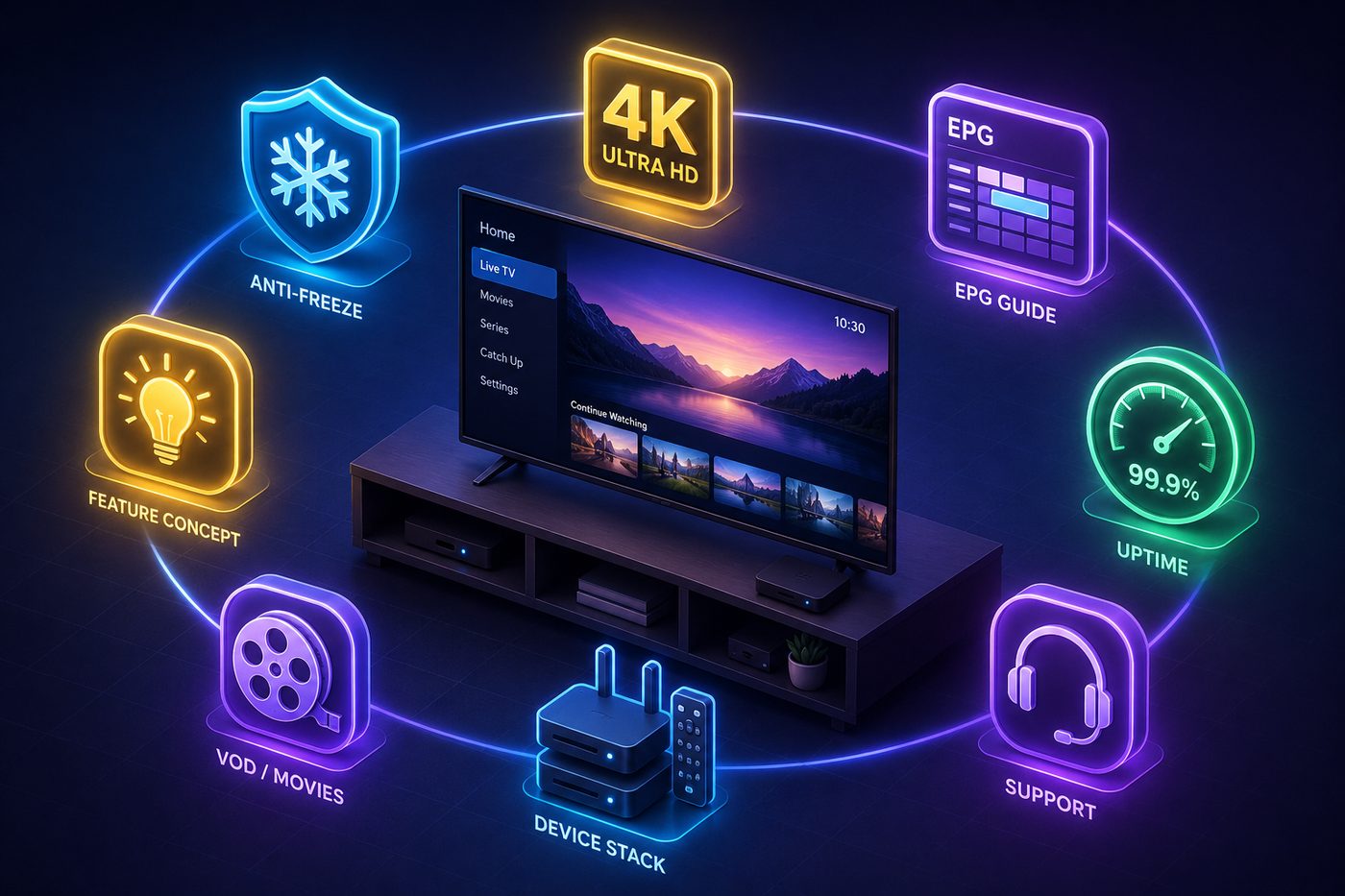
If you've worked through fixes 1–9 and your internet tests fine but streams still stutter — especially during peak evening hours — the problem is likely the provider's servers. Cheap or oversold IPTV services cram too many users onto under-powered servers, and there's nothing you can do from your end. A premium provider with redundant servers and published uptime (99.9%+) is the real fix. Test one with a NIXATV plan and compare the difference on your own network.
Fixing IPTV Buffering on Firestick Specifically
The Amazon Firestick is the most popular IPTV device, and it has a couple of quirks worth knowing. Beyond the general fixes above, Firestick buffering is often caused by overheating — if the stick is plugged directly into a hot HDMI port behind the TV, use the included HDMI extender to give it airflow. Also clear the cache regularly and avoid filling the limited storage with too many apps. Our full guide to the best IPTV for Firestick covers device-specific settings in detail.
Router Settings That Quietly Cause Buffering
Your router does more than you think, and a few default settings can throttle IPTV without you realizing it. Worth checking:
- QoS (Quality of Service): some routers let you prioritize specific devices. Set your streaming device as high priority so it gets bandwidth first when the network is busy.
- Old firmware: outdated router firmware causes dropped connections and slowdowns. Log into your router's admin panel and update it.
- Too many connected devices: phones, laptops, smart-home gadgets, and security cameras all eat bandwidth in the background. Disconnect what you're not using during peak viewing.
- Channel congestion: in apartment buildings, dozens of nearby routers crowd the same Wi-Fi channels. Switching your router to a less-crowded channel (or using 5GHz) reduces interference.
- Aging hardware: a router more than 5–6 years old may not handle modern streaming well. An upgrade to a Wi-Fi 6 router is often the quiet fix nobody mentions.
Buffering on Different Devices
Where you watch changes which fixes matter most:
- Smart TVs (Samsung, LG): built-in apps update slowly and have limited memory. Reboot the TV fully (unplug for a minute), and if buffering persists, a cheap external streaming stick often outperforms the TV's native app.
- Android TV boxes: generally powerful, but cheap no-name boxes overheat and bog down. Keep storage clear and avoid loading them with junk apps.
- Phones & tablets: usually buffer because of weak mobile signal or Wi-Fi. On cellular, you need a strong 4G/5G signal; on Wi-Fi, stay close to the router.
- PC & laptop: browser-based playback is heavier than a dedicated app. Use the provider's app or a lightweight player, and close extra browser tabs.
Not sure which device gives the smoothest experience? Compare them in our guide to the best streaming device for IPTV.
How to Tell If Your ISP Is Throttling You
Some internet providers deliberately slow down streaming traffic, especially during peak hours. Here's a simple test: run a speed test normally, then run it again while connected to a VPN. If your speed is noticeably faster with the VPN on, your ISP is likely throttling streaming — because the VPN hides what you're doing. In that case, a fast VPN becomes a legitimate buffering fix, not just a privacy tool. If speeds are the same either way, throttling isn't your issue and you can skip the VPN.

What Internet Speed Do You Really Need?
A common misconception is that you need ultra-fast gigabit internet for IPTV. You don't. As the numbers in Fix 1 show, even a modest 25 Mbps connection handles true 4K comfortably. What matters more than raw speed is stability — a steady 30 Mbps line beats a 200 Mbps connection that drops packets every few minutes. If your speed is fine but buffering persists, focus on stability: wired connections, a good router, and a quality provider.
Does a VPN Help or Hurt Buffering?
It can go either way. A VPN helps if your ISP is throttling streaming traffic — it hides your activity so they can't single out video for slowdown. But a VPN hurts if you pick a slow service or a distant server, because it adds an extra hop. If you use a VPN, choose a fast provider and connect to a nearby server. If you don't have throttling issues, you don't need one for buffering.
Common IPTV Buffering Myths
There's a lot of bad advice online. Let's clear up the most common myths so you don't waste time:
- "You need gigabit internet." False. A stable 25–50 Mbps connection streams 4K perfectly. Paying for gigabit fixes nothing if the real issue is Wi-Fi or your device.
- "A more expensive streaming box always streams better." Not necessarily. A cheap Firestick 4K Max on a wired connection beats a pricey box on weak Wi-Fi. The network matters more than the badge on the device.
- "Buffering means the IPTV service is bad." Sometimes — but often it's your local setup. Work through the fixes first; only blame the provider after your internet and device check out.
- "A VPN always makes streaming faster." Only if you're being throttled. Otherwise it usually adds a little latency.
- "Closing the app and reopening fixes everything." It helps short-term, but if you're doing it constantly, there's an underlying cause — find and fix the root, not the symptom.

When to Stop Troubleshooting and Switch Providers
There's a point where more tweaking is wasted effort. If your speed test consistently passes, your device is wired or on strong Wi-Fi, your cache is clear, and streams still stutter night after night, you've done your part — the bottleneck is on the provider's side. Oversold services that pack thousands of users onto cheap servers simply can't deliver stable streams at peak times, no matter what you do. The honest move at that point is to test a better-built service. A legitimate provider's NIXATV plan lets you compare head-to-head on the exact same network, so you'll know within an evening whether the problem was you or them.
Buffering vs Your Whole Setup — A Quick Checklist
Run through this in order and you'll resolve the vast majority of buffering problems:
- ✅ Speed test passes for your target quality (Fix 1)
- ✅ Streaming device is wired or on strong 5GHz Wi-Fi (Fixes 2, 3)
- ✅ App cache cleared, background apps closed (Fixes 4, 5)
- ✅ Fast DNS set, buffer size adjusted (Fixes 6, 9)
- ✅ Device and router rebooted recently (Fix 8)
- ✅ Stream quality matched to your bandwidth (Fix 7)
- ✅ Provider has stable, uncrowded servers (Fix 10)
FAQs — Fixing IPTV Buffering
Why does my IPTV keep buffering even with fast internet?
Fast internet doesn't help if the connection is unstable or the bottleneck is elsewhere. The usual culprits are weak Wi-Fi (use Ethernet), an overloaded device (clear cache, reboot), or an overcrowded provider server (test a better provider). Stability matters more than raw speed.
What internet speed stops IPTV buffering?
15–20 Mbps for Full HD and 25+ Mbps for 4K, per stream. But a stable 25 Mbps connection outperforms an unstable 100 Mbps one. If your speed test passes and it still buffers, the issue is stability or the provider, not raw bandwidth.
Does clearing the cache stop IPTV buffering?
Often, yes — especially when a device that worked fine suddenly starts buffering. Cached data builds up and slows the app. Clearing it takes 20 seconds and is one of the first things to try.
Why does IPTV only buffer at night?
Evening is peak streaming time. If buffering only happens then, it's usually either ISP congestion on your line or an oversold provider whose servers get overwhelmed. A premium provider with proper server capacity won't buckle at peak hours.
Will a VPN fix IPTV buffering?
Only if your ISP is throttling streaming traffic. In that case a fast VPN on a nearby server helps. Otherwise a VPN can actually add slight latency. It's a situational tool, not a universal fix.
How do I stop my Firestick from buffering?
Clear the app cache, use the HDMI extender to prevent overheating, switch to a wired Ethernet adapter or strong 5GHz Wi-Fi, close background apps, and reboot weekly. See our Firestick IPTV guide for the full rundown.
Is buffering the provider's fault or mine?
If buffering happens on every device and channel — and gets worse at peak hours despite a passing speed test — it's likely the provider. If it's isolated to one device or improves when you wire that device, it's on your end. Testing a quality provider's free trial is the fastest way to tell.
The Bottom Line
IPTV buffering is almost always fixable, and usually in minutes. Start with a speed test, wire your device or strengthen Wi-Fi, clear the cache, and reboot — those four steps resolve the majority of cases. If the stutter survives all ten fixes and your internet checks out, the weak link is your provider.
A reliable service with stable, redundant servers is what keeps streams smooth when it matters most. See the NIXATV plans, test one on your own network, and see how a properly-built IPTV service streams — no buffering, no excuses.