If IPTV Smarters Pro is the easy, do-everything player, TiviMate is the enthusiast's choice — the app people switch to when they want the best guide, recording, and a TV-like experience that feels more premium than anything else. It's Android and Fire TV focused, so it's perfect for Firestick and Android TV box users. Here's the complete 2026 walkthrough.
Short answer
TiviMate is a premium IPTV player app, widely considered the best-looking and most powerful guide-based player for Android and Fire TV devices. It turns your IPTV subscription into a polished TV experience with a gorgeous program guide (EPG), DVR-style recording, catch-up, multi-view, and deep customization. The app is free to start; a one-time or yearly TiviMate Premium upgrade unlocks recording, multiple playlists, and more. You log in once with an M3U URL or Xtream Codes credentials from your provider. This guide explains what TiviMate is, walks through setup, recording, and customization, compares it to IPTV Smarters Pro, and fixes the most common problems.
What Is TiviMate?
TiviMate is an IPTV player application — not an IPTV service. This distinction matters: the app is the polished "screen" that displays your channels, but you still need a subscription from an IPTV provider to supply the content. TiviMate takes your login details and presents your channels, guide, and recordings in one of the cleanest interfaces available.
What sets TiviMate apart is its focus on the guide experience and power features. Where other players aim for simplicity, TiviMate aims to feel like a premium cable-box replacement — beautiful EPG, smooth navigation, recording, and serious customization. If you don't have a subscription yet, our how to get IPTV guide explains how to choose one, and you can start a NIXATV plan to get login details. New to the concept entirely? See our complete guide to what IPTV is.
Key Features of TiviMate
TiviMate's reputation rests on a feature set aimed at people who want their IPTV to feel like premium TV:
- Best-in-class EPG. A gorgeous, smooth electronic program guide that's the gold standard among IPTV players. Learn more in our EPG guide.
- DVR recording (Premium). Record live TV to your device or storage, just like an old DVR — schedule from the guide.
- Catch-up / archive. Rewatch programs that already aired, on supported providers.
- Multi-view (Premium). Watch multiple channels at once on one screen — great for sports.
- Multiple playlists (Premium). Combine more than one subscription/playlist in a single app.
- Deep customization. Tweak the layout, guide appearance, channel groups, and playback to your taste.
- Favorites & channel groups. Organize channels exactly how you want them.
- Smooth, TV-first navigation. Designed for a remote and the big screen.
It's this combination of a beautiful guide and genuine power features that makes TiviMate the favorite of IPTV enthusiasts.
TiviMate Free vs Premium
TiviMate comes in two tiers, and understanding the difference helps you decide whether to upgrade:
| Feature | Free | Premium |
|---|---|---|
| EPG / program guide | ✅ | ✅ |
| Favorites & channel groups | ✅ | ✅ |
| Recording (DVR) | ❌ | ✅ |
| Multiple playlists | ❌ | ✅ |
| Multi-view | ❌ | ✅ |
| Scheduled recordings & more | ❌ | ✅ |
The free version is genuinely usable and gives you the famous guide and favorites. TiviMate Premium — available as an affordable yearly or lifetime upgrade — unlocks recording, multiple playlists, and multi-view. If you want DVR features or want to combine playlists, Premium is well worth it. If you just want a great guide, the free tier may be all you need.
What You Need Before You Start
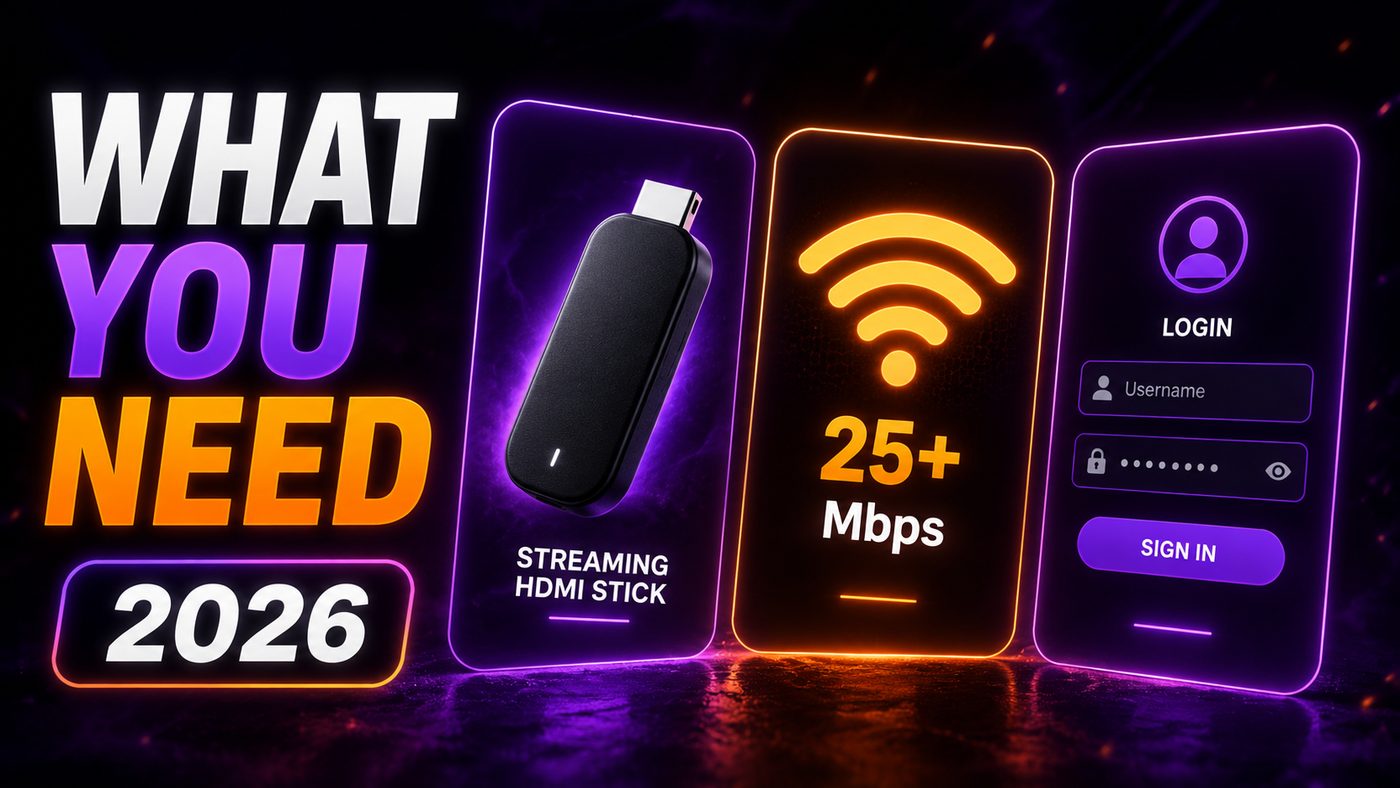
Setting up TiviMate is quick. Gather these first:
- A compatible device — TiviMate runs on Android phones/tablets, Android TV boxes, and Amazon Fire TV/Firestick. (It is not available for iOS/Apple TV.)
- An IPTV subscription and the login details your provider sends you.
- Your credentials — an M3U URL or Xtream Codes (server URL, username, password).
- A stable connection — 25 Mbps+ for HD, 50+ for 4K.
Note the platform limitation: if you're on iPhone or Apple TV, TiviMate isn't an option — use IPTV Smarters Pro instead (see our IPTV Smarters Pro guide). For Firestick and Android, read on.
How to Install TiviMate
Installation depends on your device, but it's straightforward on both Android and Fire TV.
Android phones, tablets & Android TV boxes
- Open the Google Play Store.
- Search "TiviMate" and select it.
- Tap Install, then open the app.
Amazon Firestick / Fire TV
TiviMate is usually available in the Amazon Appstore directly:
- From the Fire TV home, select the Search icon.
- Type "TiviMate" and select it.
- Choose Get / Download to install.
If it's not in the Appstore on your device, you can install it via the Downloader app the same way you would any player — our how to install IPTV on Firestick guide covers that method.
How to Add Your Playlist and Log In
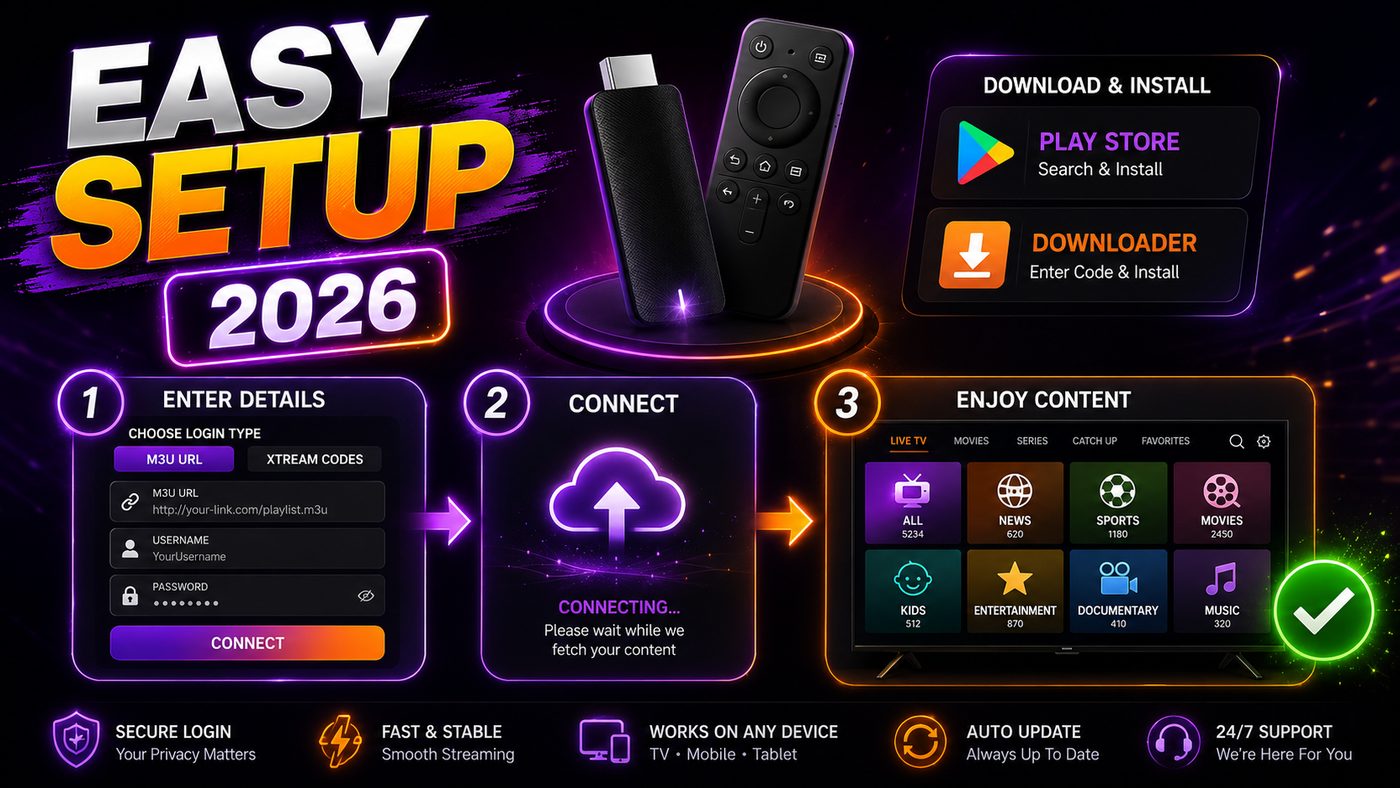
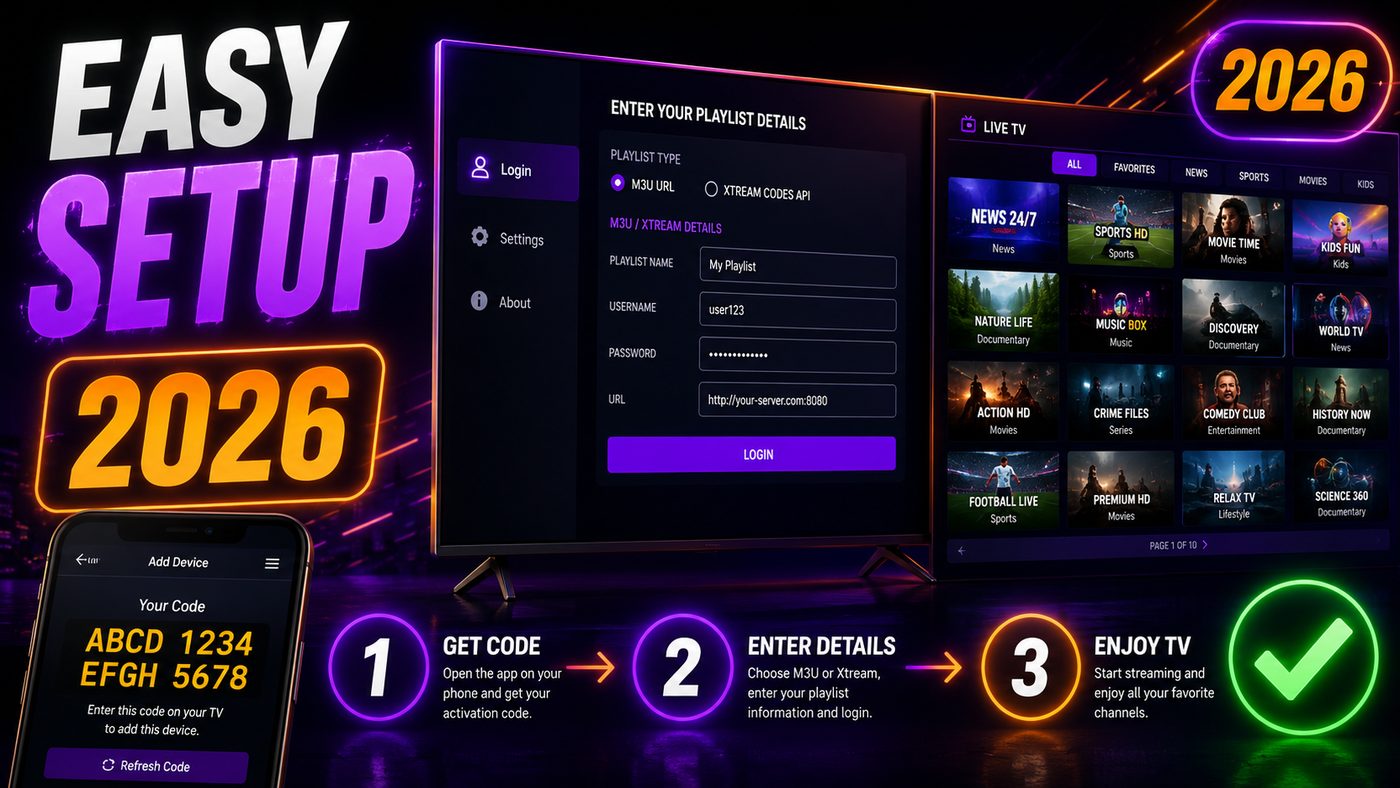
This is where your subscription comes to life. Open TiviMate and add your playlist using the details your provider sent you.
Using Xtream Codes (recommended)
- Open TiviMate and select Add playlist.
- Choose Xtream Codes (or "Enter URL" depending on version).
- Enter the server URL, username, and password exactly as provided.
- Confirm — TiviMate loads your channels, groups, and EPG automatically.
Using an M3U URL
- Select Add playlist → M3U Playlist.
- Paste your M3U URL.
- If the guide doesn't appear, add your provider's EPG source URL under the playlist's settings.
Xtream Codes is preferred because it bundles the EPG automatically. Enter your details carefully — they're case-sensitive, so copy-paste where possible. Our step-by-step installation guide has more help if you need it.
Setting Up Recording and Catch-Up
Recording is the headline reason many people choose TiviMate. With Premium, you can record live TV like a DVR:
- Open the program guide (EPG).
- Highlight a program — current or upcoming.
- Select Record (or schedule it for a future program).
- Choose where to save recordings (internal storage or external drive) in settings.
For catch-up (rewatching recent programs), your provider must support an archive. When they do, past programs in the guide become selectable — just pick one to watch it. Both features depend on a working EPG, so make sure your guide is loaded first. See our EPG guide if it's missing.
Customizing TiviMate
TiviMate's customization is part of what fans love. A few worthwhile tweaks:
- Channel groups & favorites. Organize channels into custom groups (Sports, News, Movies) and mark favorites for instant access.
- Guide appearance. Adjust how many channels and how much time the EPG shows at once.
- Playback settings. Set your preferred decoder, buffer size, and default audio/subtitle behavior.
- Panel & layout. Tune the channel list and info panels to your taste.
- Parental controls. Lock specific channels or groups behind a PIN.
Spend a few minutes here and the app feels tailor-made for how you watch.
TiviMate vs IPTV Smarters Pro
The two most popular players suit different users. Here's how they compare:
| Factor | TiviMate | IPTV Smarters Pro |
|---|---|---|
| Platforms | Android & Fire TV only | Android, iOS, Smart TV, PC |
| Guide (EPG) | Best-in-class | Clean & solid |
| Recording (DVR) | ✅ (Premium) | Limited |
| Multi-view & multi-playlist | ✅ (Premium) | ❌ |
| Cost | Free + Premium upgrade | Free |
| Best for | Power users, big screen | Most users, all devices |
Choose TiviMate if you're on Firestick/Android and want the best guide, recording, and multi-view. Choose IPTV Smarters Pro if you want a free, simple player that works on every device including iPhone and Apple TV. Many people use both — Smarters Pro on their phone, TiviMate on the TV. For a wider look, see our guide to the best IPTV player apps.
TiviMate Multi-View: Watch Several Channels at Once
One of TiviMate Premium's standout features is multi-view — the ability to watch multiple channels simultaneously on a single screen. For sports fans, this is a genuine game-changer. Picture a Sunday with several NFL games on at once, or a fight night where you want the main card and the prelims side by side.
To use it, you select multiple channels into a multi-view layout, and TiviMate displays them together, letting you focus audio on one while keeping an eye on the others. It works best on a powerful device with a strong, wired connection, since you're decoding several streams at once. If you've ever paid for an expensive "multi-screen" cable package, TiviMate's multi-view delivers the same experience for the cost of a Premium upgrade. Pair it with our guide to the best IPTV for sports to get the most from a busy game day.
The TiviMate Companion App
TiviMate also offers a companion app for phones that makes managing the main app on your TV far easier. Anyone who has tried typing a long server URL or password using a TV remote knows the pain — the companion app solves it. With it you can:
- Enter playlists and logins from your phone instead of pecking at an on-screen keyboard with the remote.
- Manage settings and channel groups more comfortably on a touchscreen.
- Use your phone as a convenient remote for the app on your TV.
If you find remote-based text entry frustrating, the companion app is well worth setting up — it turns a fiddly task into a few quick taps. It's especially handy when first adding your Xtream Codes details, where a single typo can block login.
How to Update or Reinstall TiviMate
Keeping TiviMate current ensures the smoothest playback and the latest features. Here's how to maintain it:
- Updating: on Android and Fire TV, updates apply through the Play Store or Amazon Appstore, automatically or via the app's store page.
- Reinstalling cleanly: uninstall from your device's app settings, then reinstall and add your playlist again. This clears corrupted data and fixes most persistent glitches. Note your Xtream Codes details first so you can log back in.
- Clearing cache: if the app feels sluggish, clear its cache in device settings before a full reinstall.
- Premium carries over: your Premium license is tied to your account, so it remains active after reinstalling — just sign back in.
A quick check every few weeks keeps everything running smoothly and ensures your recordings and guide stay reliable.
Common TiviMate Problems and Fixes
Most TiviMate issues are quick to resolve. Run through this before assuming something's broken:
| Problem | Likely cause | Fix |
|---|---|---|
| Can't add playlist / connect | Wrong URL or credentials | Re-enter details exactly (case-sensitive); confirm with provider |
| No EPG / blank guide | EPG source missing or wrong time zone | Add EPG source; set time zone; refresh EPG |
| Channels buffer or freeze | Weak connection or server load | Use 5 GHz/Ethernet; adjust buffer; test off-peak |
| Recording won't work | No Premium or no storage set | Upgrade to Premium; set a valid recording location |
| A stream won't play | Decoder/format issue | Switch decoder in playback settings |
| App slow after updates | Cache buildup | Clear cache; restart device; reinstall if needed |
The universal first fix
Before deep troubleshooting: fully close and reopen TiviMate, restart your device, and confirm your internet is stable. For buffering specifically, our guide on fixing IPTV buffering goes step by step. If problems persist on a strong connection, the issue is usually on the provider's side — which is why a reliable provider matters as much as the player.

Who Should Use TiviMate (and Who Shouldn't)?
TiviMate isn't automatically the right choice for everyone — it's the right choice for specific kinds of users. Knowing where you fit saves time:
- Choose TiviMate if you're on a Firestick or Android TV box, you watch mostly on the big screen, and you want the best guide, DVR recording, multi-view, or the ability to combine multiple playlists. It's the enthusiast's player.
- Choose TiviMate if you're replacing a cable DVR and want scheduled recordings and catch-up in a polished, TV-like interface.
- Stick with IPTV Smarters Pro if you're on iPhone or Apple TV (TiviMate isn't available there), or if you want a completely free player and don't need recording or multi-view.
- Consider both if you watch across many devices — TiviMate on the TV, Smarters Pro on your phone — using the same Xtream Codes login on each.
There's no single "best" player for everyone; it depends on your devices and how you watch. For most big-screen enthusiasts in the USA and Canada, though, TiviMate is the one to beat. For the full landscape, see our guide to the best IPTV player apps.
Performance Tips for TiviMate on Firestick
TiviMate is feature-rich, so getting the smoothest experience — especially on a Firestick — comes down to a few practical tweaks:
- Use a Fire TV Stick 4K or 4K Max rather than a basic model; the extra power keeps the guide and recordings smooth.
- Wire it with an Ethernet adapter for live sports, multi-view, and reliable recordings — multi-view in particular is demanding on bandwidth.
- Adjust the buffer size in playback settings if you see occasional stutter on a busy network.
- Restart the device weekly and keep storage free so recordings have somewhere to go.
- Pick the right decoder. If a channel stutters, switching between hardware and software decoding usually fixes it instantly.
These small habits keep TiviMate running like premium TV. For more on hardware, see our Firestick install guide.
Is TiviMate Safe and Legal?
Yes — TiviMate is a legitimate, well-regarded media player application available through official app stores. The app itself provides no content; it only plays whatever subscription you connect to it. As with any player, the legality question depends on the service you use, not the app — so choose a transparent, properly run provider. We cover this fully in our guide on whether IPTV is legal in the USA.
Download TiviMate only from official sources (Google Play, the Amazon Appstore, or the official site), keep it updated, and avoid unofficial "modded" versions. For neutral background on the technology, the Wikipedia entry on IPTV is a good reference.
Tips to Get the Most From TiviMate
A few habits make the app even better:
- Use Xtream Codes login for automatic EPG and easier catch-up.
- Upgrade to Premium if you want recording, multi-view, or multiple playlists — it's inexpensive and unlocks the best features.
- Wire your device with Ethernet for the smoothest live sports and 4K, and to make recordings reliable.
- Organize channel groups so game day is frictionless.
- Keep the app and device updated for the latest features and stability.
For hardware recommendations, see the best IPTV for Firestick overview and the best streaming devices for IPTV.
The Bottom Line: TiviMate in 2026
TiviMate is the premium choice for IPTV enthusiasts on Android and Fire TV — the best guide experience, DVR recording, catch-up, and multi-view, wrapped in a beautiful, customizable interface. Remember the key distinction: it's a player, not a service, so you still need a quality subscription to feed it channels. Install it, add your playlist with Xtream Codes, upgrade to Premium if you want recording, and you've got a TV experience that rivals or beats traditional cable.
Because the app is only as good as the subscription behind it, the real decision is choosing a reliable provider. Want to see TiviMate running with a quality service? Start a NIXATV plan, add your details, and explore the guide for yourself. For our tested picks, see the best IPTV USA page.
Frequently Asked Questions
What is TiviMate?
TiviMate is a premium IPTV player app for Android and Fire TV devices, known for the best-looking program guide plus DVR recording, catch-up, and multi-view. It's not an IPTV service itself — you need a separate subscription to supply the channels. The app is free to start, with a Premium upgrade for advanced features.
Is TiviMate free?
TiviMate has a free version that includes the famous guide and favorites. TiviMate Premium — an affordable yearly or lifetime upgrade — unlocks recording, multiple playlists, and multi-view. The free tier is genuinely usable; upgrade if you want DVR features or to combine playlists.
Is TiviMate available for iPhone or Apple TV?
No. TiviMate is only available for Android and Amazon Fire TV devices (phones, tablets, Android TV boxes, and Firestick). If you're on iPhone or Apple TV, use IPTV Smarters Pro instead, which supports iOS and most other platforms.
How do I record on TiviMate?
Recording requires TiviMate Premium. Once upgraded, open the program guide, highlight a current or upcoming program, and select Record (or schedule it). Set a recording location (internal or external storage) in settings. Recording depends on a working EPG, so make sure your guide is loaded first.
TiviMate vs IPTV Smarters Pro — which is better?
TiviMate is better for power users on Firestick/Android who want the best guide, recording, and multi-view. IPTV Smarters Pro is better if you want a free, simple player that works on every device including iPhone and Apple TV. Many users run both — Smarters Pro on mobile, TiviMate on the TV.