Roku is the most popular streaming platform in the United States, sitting in tens of millions of living rooms. If you already own a Roku TV or a Roku streaming stick, it's natural to want your IPTV subscription running on the device you already use every day. The good news: it's absolutely possible. The catch: Roku's closed ecosystem makes it less straightforward than an Amazon Firestick or Android box. Let's fix that.
Short answer
Roku does not allow the popular IPTV player apps (IPTV Smarters Pro, TiviMate) in its Channel Store, and Roku devices cannot sideload apps the way Android can. So to watch IPTV on a Roku TV in 2026 you use one of three reliable methods: screen mirroring from an Android phone or Windows PC, AirPlay casting from an iPhone or iPad, or one of the few web-based / M3U player channels that Roku does permit. This guide walks through each method step by step, explains which one is best for live sports, and tells you honestly when a $40 Firestick is the smarter move.
Why IPTV on Roku Is Different From Firestick
Before the how-to, it helps to understand why Roku needs workarounds. This one fact explains everything that follows:
- Roku uses a closed app platform. Apps are called "channels," and they must be approved and published through the official Roku Channel Store. Unlike Android-based Firestick, you cannot "sideload" an APK file.
- The big IPTV player apps aren't on Roku. IPTV Smarters Pro and TiviMate — the two most popular players — are Android/Apple apps. There are no official Roku versions in the Channel Store.
- So you bring the stream to Roku instead. Rather than running the player on the Roku, you run it on a phone, tablet, or PC and send the picture to the Roku screen via mirroring or casting.
If you're brand new to the technology, our complete guide to what IPTV is and how it works covers the fundamentals before you set anything up. For a device built specifically for IPTV apps, see how a Firestick compares in our best IPTV for Firestick guide.
The 3 Working Methods for IPTV on Roku (Compared)
Here's an honest, at-a-glance comparison so you can pick the method that fits the devices you already own:
| Method | Best for | Quality | Difficulty |
|---|---|---|---|
| Screen mirroring (Android / Windows) | Android phone or PC owners | Good (HD; depends on Wi-Fi) | Easy |
| AirPlay (iPhone / iPad / Mac) | Apple users with a compatible Roku | Good to very good | Easy |
| Web / M3U player channel | Watching directly on Roku, no phone | Varies by app | Medium |
| Switch to a Firestick (alternative) | Best native IPTV experience | Excellent (native 4K apps) | Easy |
Below, each method is broken down into clear steps.
Method 1 — Screen Mirroring From an Android Phone or PC
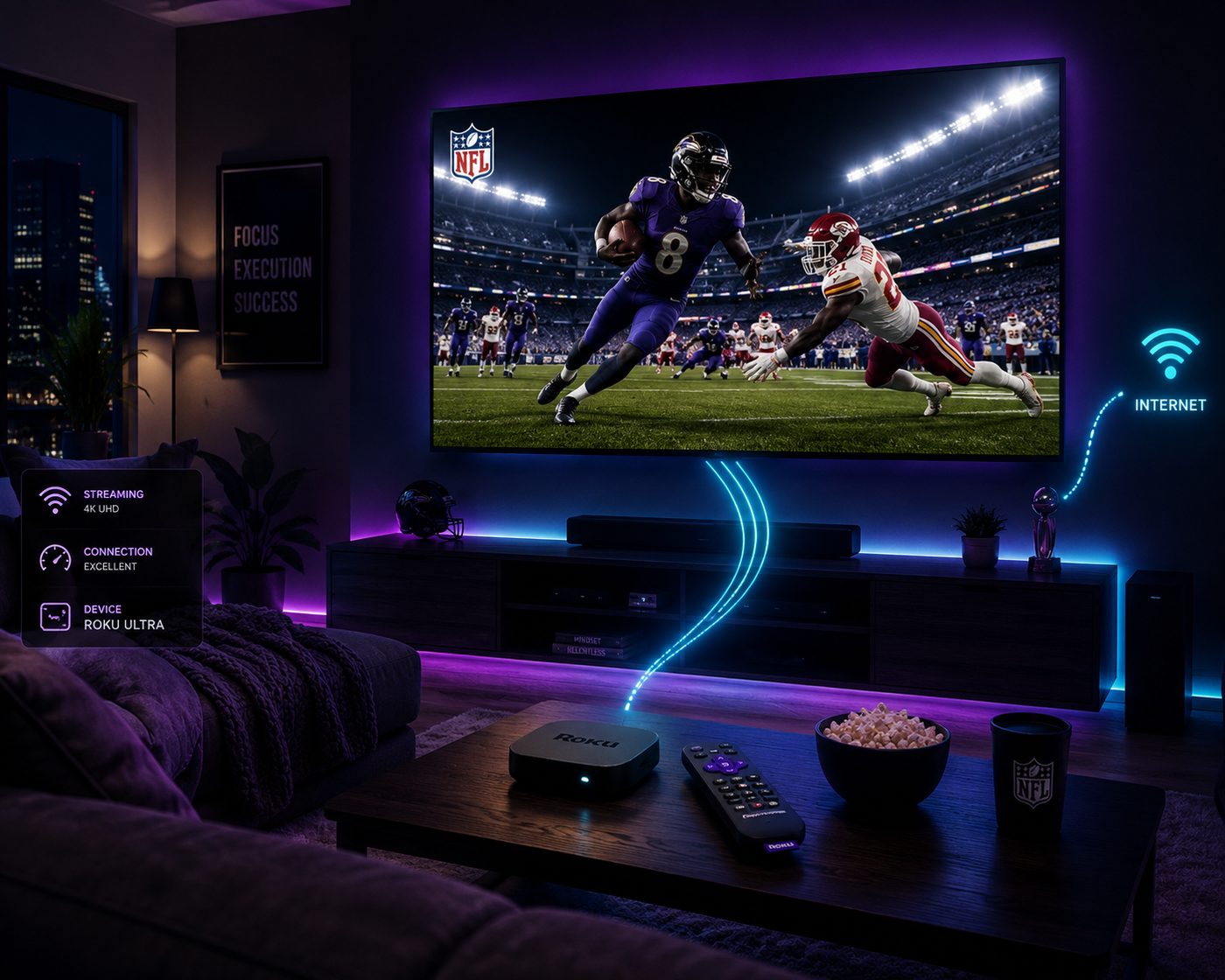
This is the most popular and most reliable method for the majority of users. You run a proper IPTV player (like IPTV Smarters Pro) on your Android phone, tablet, or Windows computer, then mirror that screen wirelessly to your Roku. The Roku simply displays whatever is on your phone.
Step-by-step on Android
- On your Roku, go to Settings → System → Screen mirroring and set the mode to Prompt or Always allow.
- Make sure your Android phone and your Roku are on the same Wi-Fi network. This is the single most common point of failure — double-check it.
- On your Android phone, open Quick Settings and tap Cast / Smart View / Screen Mirroring (the name varies by brand).
- Select your Roku from the list of devices.
- Open your IPTV player app (IPTV Smarters Pro, for example), start a channel, and it will appear on your TV.
Step-by-step on Windows
- Enable screen mirroring on the Roku as above.
- On Windows 10/11, press Windows + K to open the Cast panel.
- Select your Roku, then play IPTV in a player or browser on the PC.
Pro tip: rotate your phone to landscape and turn on "do not disturb" so notifications don't pop up on the big screen mid-game. The main downside of mirroring is that your phone is tied up while you watch and the picture quality depends on your Wi-Fi strength. For a smooth 4K-grade experience, a wired or strong 5 GHz connection makes a real difference — see our tips on fixing IPTV buffering if the picture stutters.
Method 2 — AirPlay From an iPhone, iPad or Mac
Most Roku devices released in recent years support Apple AirPlay 2, which makes life easy for iPhone, iPad, and Mac owners. You can confirm support under Settings → Apple AirPlay and HomeKit on your Roku. Apple's own AirPlay documentation lists compatible devices if you're unsure.
- On the Roku, open Settings → Apple AirPlay and HomeKit and make sure AirPlay is turned on.
- Connect your iPhone/iPad to the same Wi-Fi as the Roku.
- Open an IPTV player app on your iPhone and start a channel.
- Swipe into Control Center, tap Screen Mirroring, and choose your Roku.
- The stream now plays on your TV. Enter the on-screen code if prompted.
AirPlay tends to be slightly smoother than Android mirroring because Apple's implementation is well optimized, but it still depends on a solid home network. As with Method 1, your phone stays "in use" while casting.
Method 3 — Web / M3U Player Channels on Roku
If you'd rather watch directly on the Roku without tying up a phone, a small number of IPTV-capable "channels" exist in the Roku Channel Store. These typically let you load your provider's M3U URL or Xtream Codes login directly on the device.
Availability changes over time, so always search the current Roku Channel Store, but the categories to look for are:
- M3U / playlist players — apps that accept an M3U link or file and display the channels and EPG (program guide).
- Provider-specific channels — some IPTV services publish their own private or public Roku channel; ask your provider if they offer one.
- Web-based players — a few channels load a browser-style player you sign into.
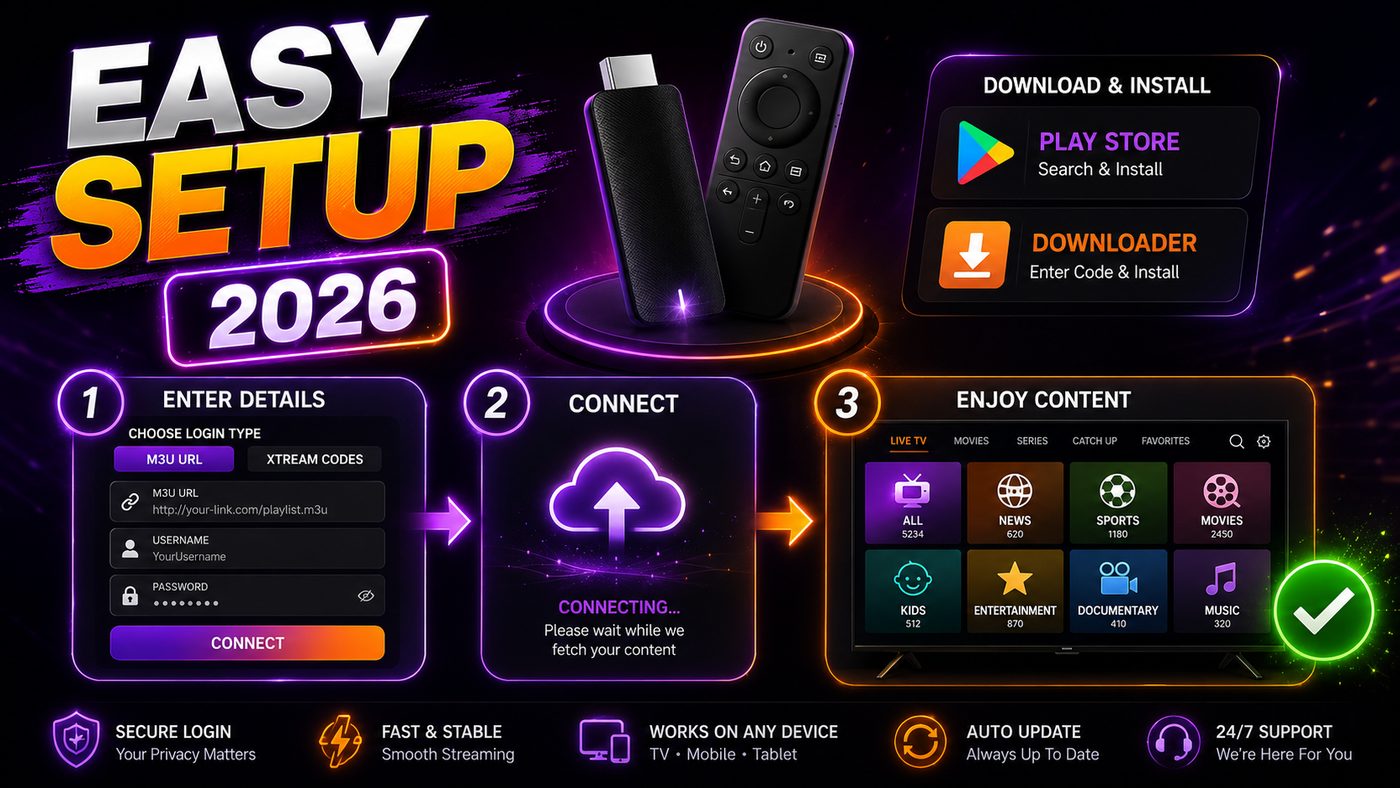
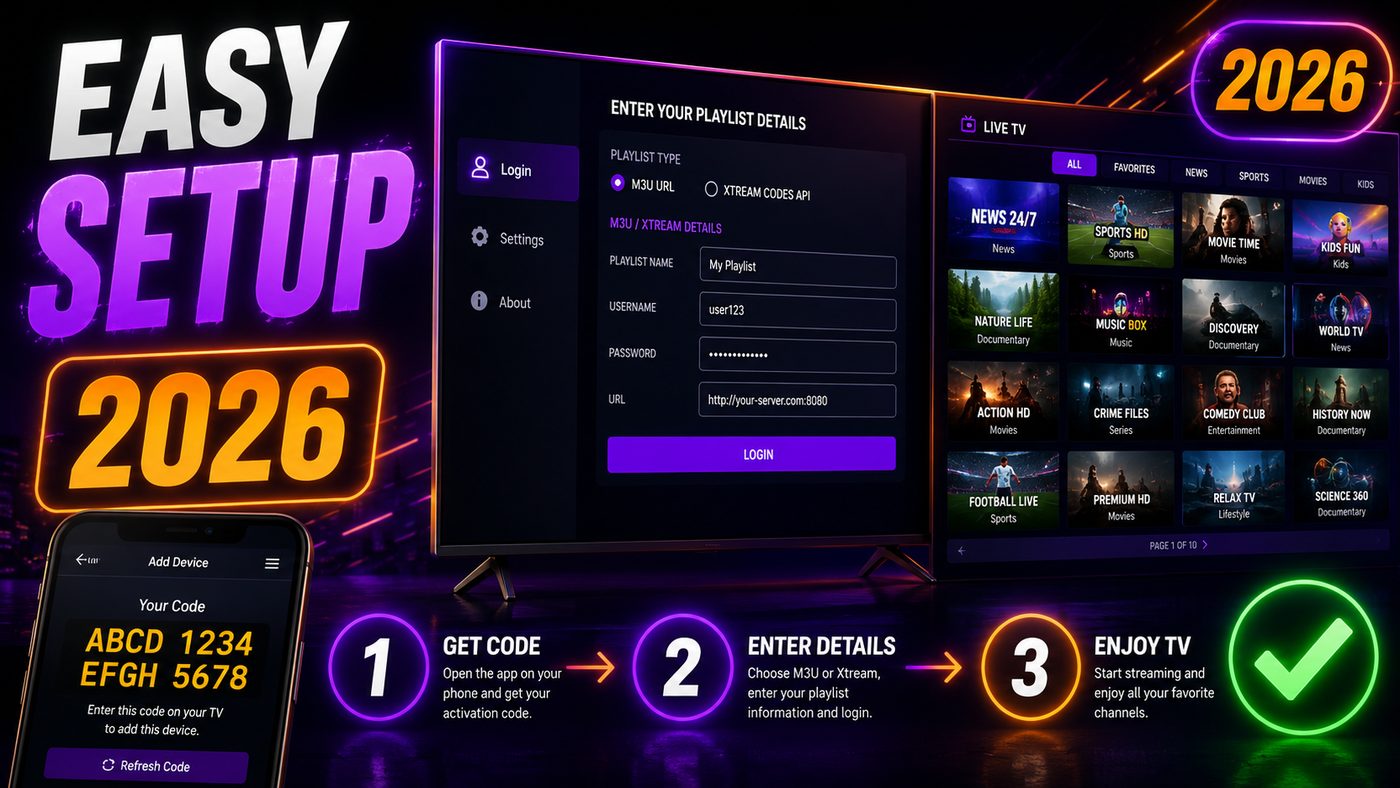
To add one: on your Roku, go to the Streaming Channels / Channel Store, search the app name, add it, then open it and enter your M3U URL or Xtream Codes credentials (server URL, username, password) exactly as your provider supplied them. If you're not sure what an M3U URL is, it's simply the link that points your player to your channel list. Our step-by-step installation guide explains where to find and how to enter these details.
The trade-off: Roku M3U apps are generally more basic than IPTV Smarters Pro or TiviMate, with simpler guides and fewer features. But for watch-and-go viewing directly on the TV, they do the job.
The Honest Alternative: Use a Firestick for IPTV
We'll be straight with you: if your top priority is the best possible IPTV experience, a Roku is not the ideal device — and that's not a knock on Roku, which is excellent for mainstream apps like Netflix and Disney+. It's simply that Roku's closed platform blocks the best IPTV players.
An Amazon Fire TV Stick 4K (around $40–$50) runs IPTV Smarters Pro, TiviMate, and other full-featured players natively, in real 4K, with no phone-mirroring required. Many cord-cutters keep their Roku for general streaming and add a cheap Firestick to a second HDMI port purely for IPTV. It's often the path of least frustration. Read our full best IPTV for Firestick breakdown to see why it's the most recommended IPTV device in the USA.
That said — if you want to keep everything on one device, the mirroring and AirPlay methods above work well for most viewers, including for live TV.
Can You Watch Live Sports With IPTV on Roku?
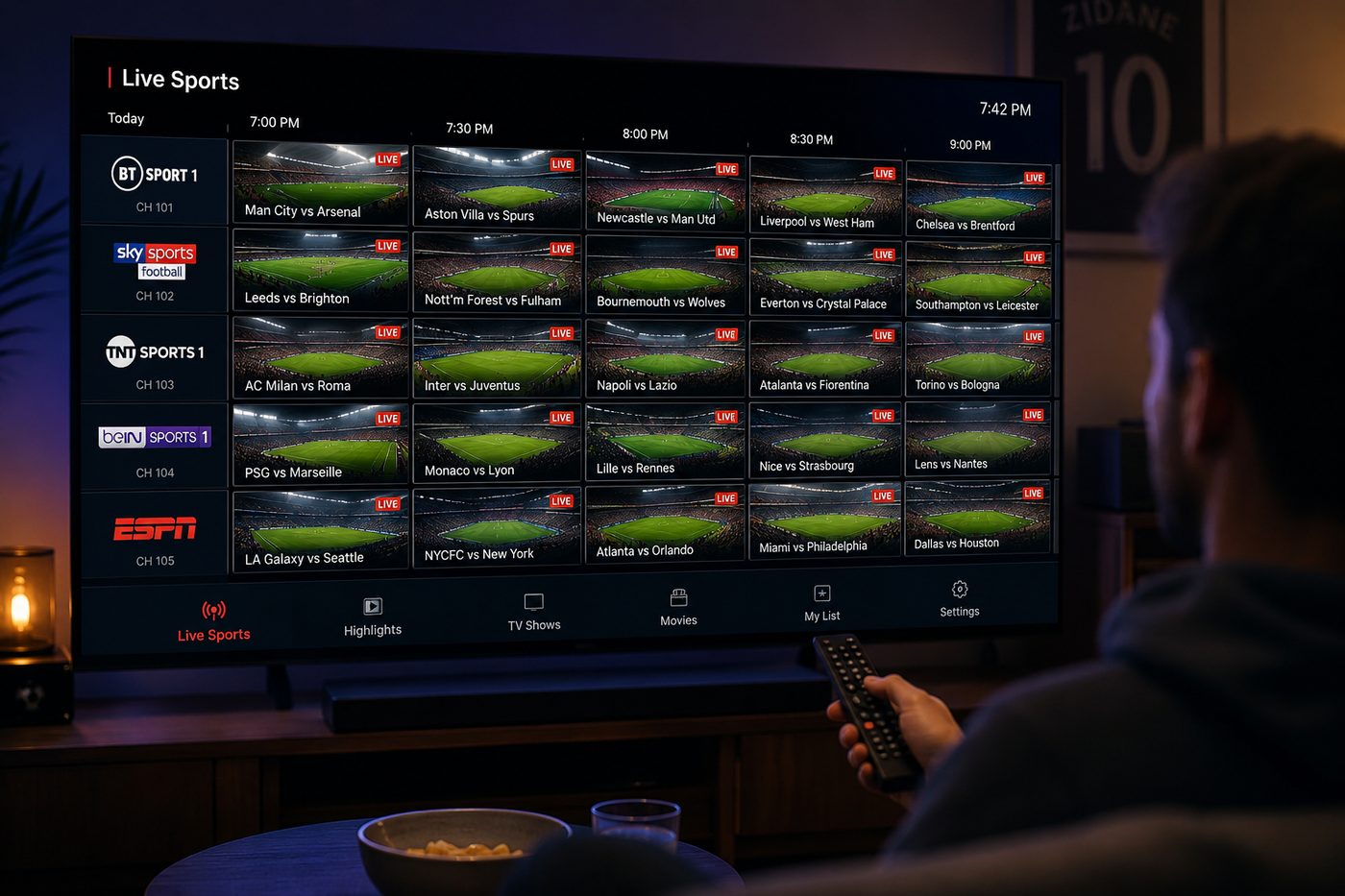
Yes — and this is the most common reason people set this up. With a quality IPTV service you can watch NFL, NBA, NHL, soccer, UFC, and more on your Roku. A few realities to plan around:
- Latency: mirroring adds a small delay between your phone and the TV. It's fine for watching, but you might hear a neighbor cheer a second before you see the goal.
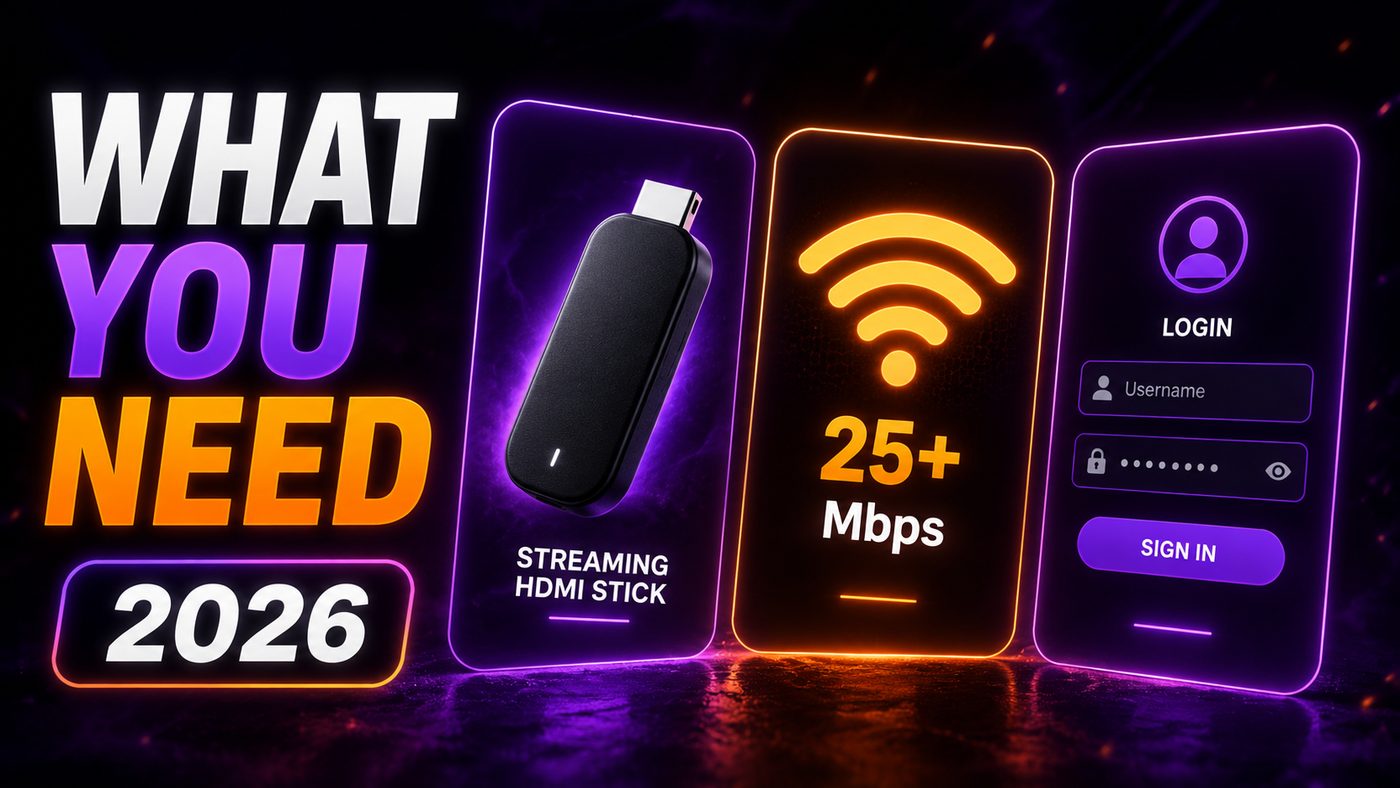
- Wi-Fi matters most: live sports in HD/4K needs a stable connection. Aim for at least 25 Mbps and a strong signal to the Roku.
- Test during peak hours: a Sunday-afternoon NFL slate is the real stress test. Always trial a service during a busy window.
For live sports specifically, browse our full IPTV channels list to confirm the leagues and networks you want are covered, and see our best picks for U.S. viewers on the best IPTV USA page.
Screen Mirroring vs Casting — What's the Difference?
People use "mirroring" and "casting" interchangeably, but on Roku they behave a little differently, and knowing which is which saves a lot of confusion:
- Screen mirroring sends an exact copy of your phone or PC screen to the TV. Whatever you see on your phone — the IPTV app, the channel list, even a notification — shows on the Roku. Your phone has to stay on and unlocked, and it can't be used for much else while mirroring.
- Casting (AirPlay/Google Cast style) ideally hands the video stream itself to the TV so your phone becomes a remote. True casting frees up your phone, but most IPTV player apps don't support native casting of protected live streams, which is why mirroring is the dependable fallback.
For IPTV specifically, plan on mirroring being the method that "just works." It's slightly less elegant than true casting, but it's reliable across virtually every Android phone, Windows PC, and modern Roku. The key is a strong, low-latency Wi-Fi network so the mirrored picture stays crisp during fast-moving sports.
Tips to Improve IPTV Picture Quality on Roku
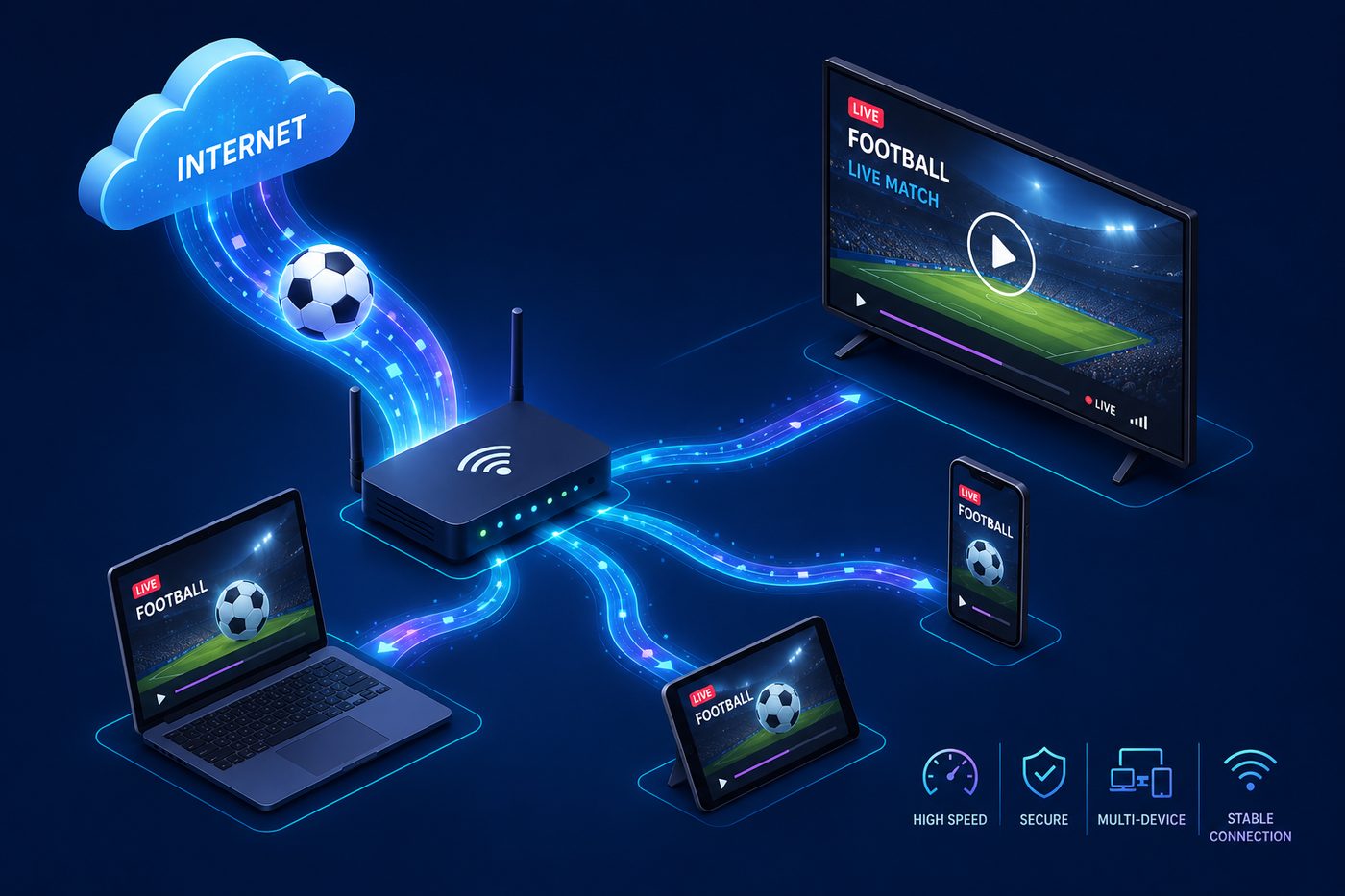
Because mirroring depends entirely on your home network, a few small tweaks make a big difference between a sharp, smooth picture and a stuttery one. Try these in order:
- Use 5 GHz Wi-Fi, not 2.4 GHz. The 5 GHz band is faster and less congested — ideal for video. Connect both your phone and Roku to it where possible.
- Get the router closer (or the device closer to the router). Walls and distance kill wireless video. A Roku two rooms away from the router is the classic buffering culprit.
- Reduce competing traffic. Large downloads, game consoles updating, or several 4K streams at once will starve your IPTV feed. Pause them during the game.
- Set your IPTV app's stream quality sensibly. If your connection is borderline, choosing an HD stream over a 4K one can eliminate buffering entirely with barely any visible difference on most TVs.
- Restart everything weekly. A quick reboot of the router, phone, and Roku clears up most gradual slowdowns.
If you've optimized the network and still see problems, the issue is more likely the IPTV service than your hardware — which is exactly why testing with a free trial first matters so much. Our deep-dive on fixing IPTV buffering helps you diagnose which side the problem is on.
Troubleshooting: When Roku Mirroring Won't Work
If the picture won't appear or keeps dropping, run through this quick checklist before giving up:
| Problem | Likely cause | Fix |
|---|---|---|
| Roku not showing in cast list | Different Wi-Fi networks | Put phone and Roku on the same network (and same band if possible) |
| Mirroring blocked / declined | Screen mirroring set to "Never allow" | Settings → System → Screen mirroring → Prompt / Always allow |
| Constant buffering | Weak Wi-Fi or overloaded network | Move closer to router, use 5 GHz, reduce other devices |
| Audio but no video (or vice versa) | App or Roku glitch | Restart the IPTV app and the Roku; update Roku software |
| AirPlay option missing | Older Roku model | Update Roku OS, or use a mirroring method / Firestick instead |
A surprising number of "it doesn't work" issues come down to the two devices being on different Wi-Fi networks or an outdated Roku OS. Update your Roku under Settings → System → System update first.
The Bottom Line: IPTV on Roku in 2026
You can absolutely watch IPTV on a Roku TV — you just can't install IPTV Smarters Pro or TiviMate directly on it. The reliable paths are screen mirroring from Android/Windows, AirPlay from Apple devices, or one of the M3U-capable channels in the Roku store. Each works well over a solid home network, and mirroring is the go-to for most people because it lets you use a full-featured player on your phone.
If you want the absolute smoothest, native experience, a $40 Fire TV Stick alongside your Roku is the honest best answer. Either way, the most important factor is the IPTV service itself — its stream stability, channel lineup, and 4K quality matter far more than the device. Ready to test it on your own setup? Start a NIXATV plan and mirror it to your Roku in five minutes.
Frequently Asked Questions
Can you get IPTV on a Roku TV?
Yes. Because Roku doesn't allow IPTV player apps like IPTV Smarters Pro in its Channel Store, you watch IPTV on Roku by screen mirroring from an Android phone or Windows PC, using AirPlay from an iPhone/iPad, or by using one of the few M3U-capable player channels available in the Roku store.
Is there an IPTV Smarters app for Roku?
No. IPTV Smarters Pro is built for Android and Apple devices and is not available in the Roku Channel Store. To use it with a Roku, run it on your phone and mirror or AirPlay the screen to the TV — or use a Fire TV Stick, which supports it natively.
How do I screen mirror IPTV to my Roku?
Enable screen mirroring on the Roku (Settings → System → Screen mirroring → Prompt), connect your phone to the same Wi-Fi, then use your phone's Cast/Smart View feature to select the Roku. Open your IPTV app and play a channel — it appears on the TV.
Why won't IPTV work on my Roku?
The most common causes are the phone and Roku being on different Wi-Fi networks, screen mirroring being set to "Never allow," outdated Roku software, or weak Wi-Fi causing buffering. Put both devices on the same network, allow mirroring, update the Roku, and ensure a strong connection.
Is a Firestick better than Roku for IPTV?
For IPTV specifically, yes. A Fire TV Stick runs full IPTV player apps natively in 4K without mirroring, while Roku requires workarounds. Many users keep their Roku for mainstream apps and add a cheap Firestick purely for IPTV. For everything else, Roku remains excellent.